
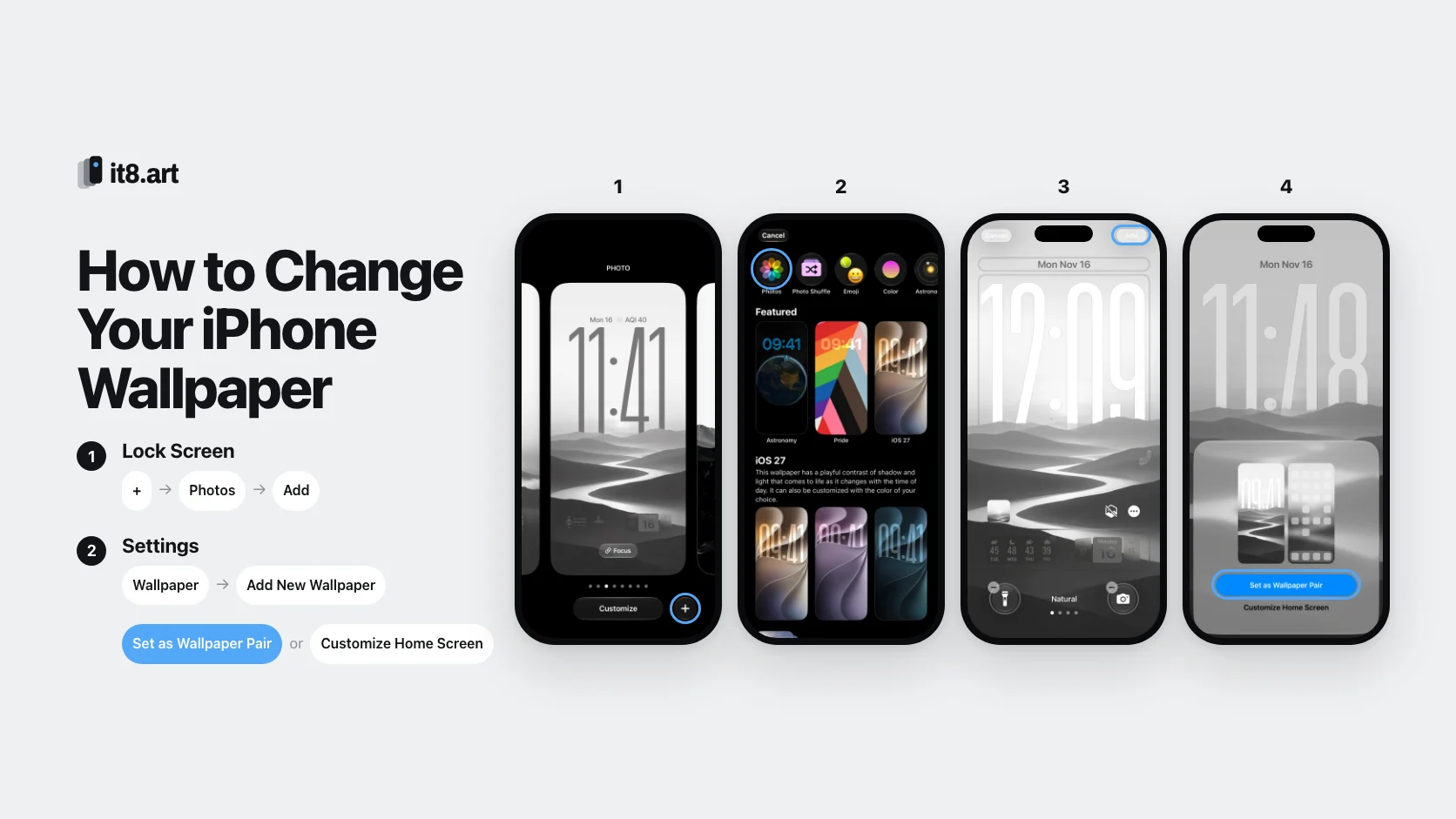
How do you change your wallpaper from the Lock Screen?
This is the quickest way, and you don't need to open any app. We took the screenshots in this guide on an iPhone running iOS 27.2.1 in November 2026. Older versions of iOS may use slightly different labels.
- Touch and hold the Lock Screen until your wallpaper gallery opens with Customize and + at the bottom. If Face ID doesn't let you in, touch and hold again and enter your passcode.
- Tap + to add a new wallpaper. To edit the wallpaper you're already using, tap Customize instead.
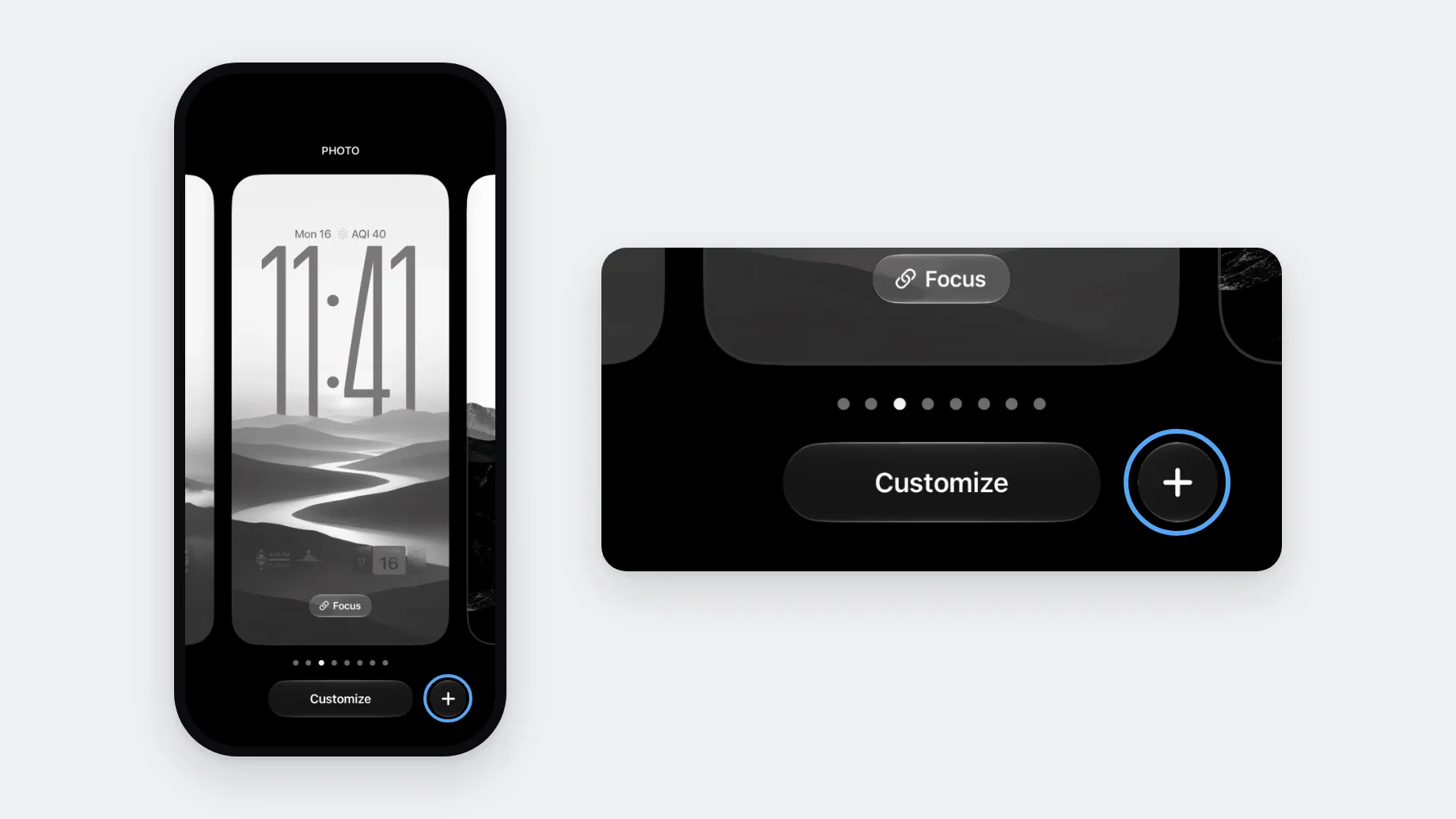
How do you choose a photo for the new wallpaper?
The picker only shows images saved to Photos. If your wallpaper is still in a downloaded ZIP, save it to Photos first.
- On the Add New Wallpaper screen, tap Photos. The same row also has Photo Shuffle, Emoji, Color and Astronomy, and Apple's own wallpapers are listed below under Featured.
- Choose an image. All shows your whole library, and Collections lets you open a specific album.
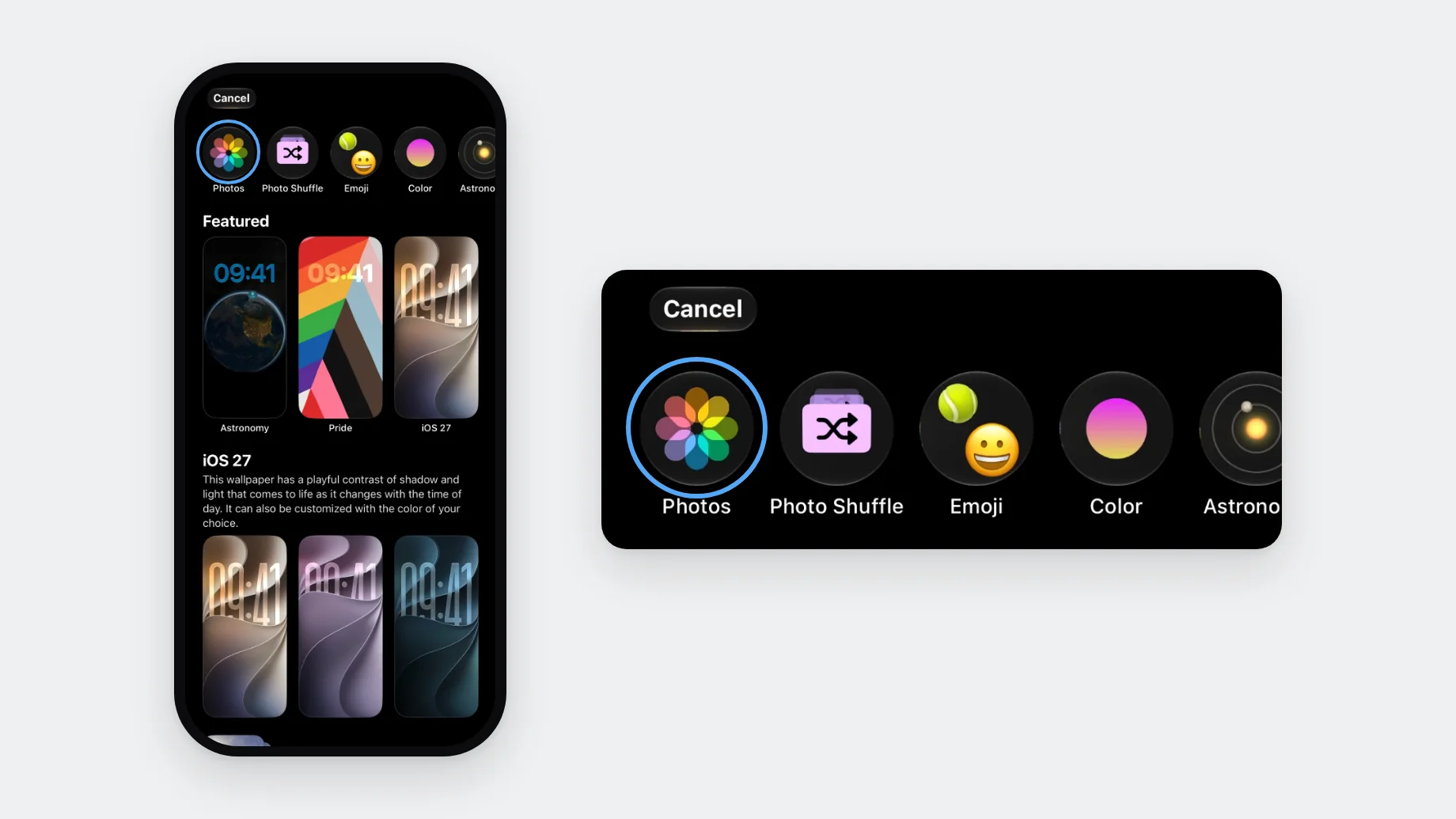
How do you position the photo and save it?
- Pinch and drag to position the image. Pinch closed to zoom out and see more of it.
- Swipe left or right to try the photo styles; ours started on Natural.
- Tap Add in the top-right corner.
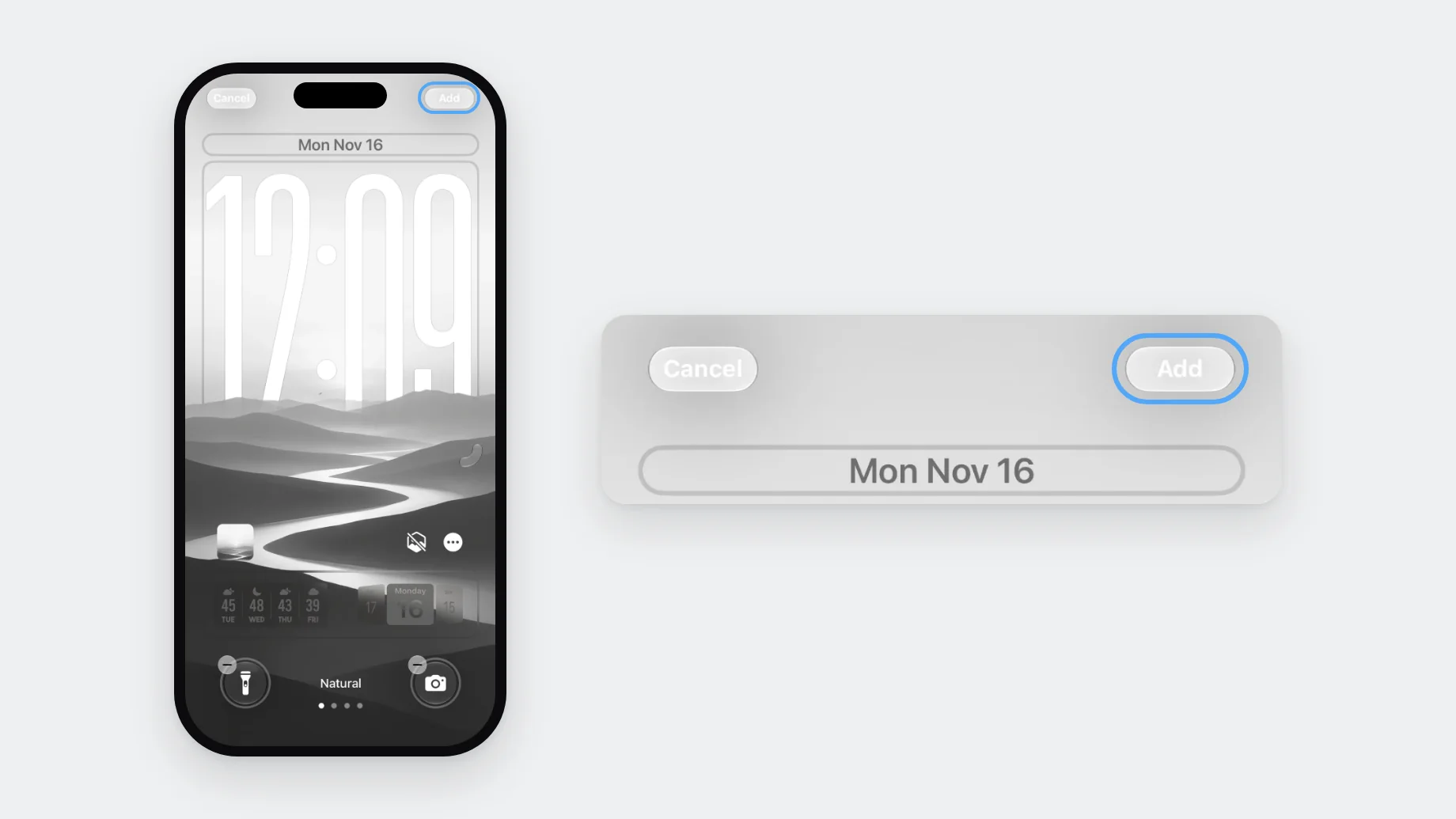
Should you choose Set as Wallpaper Pair or Customize Home Screen?
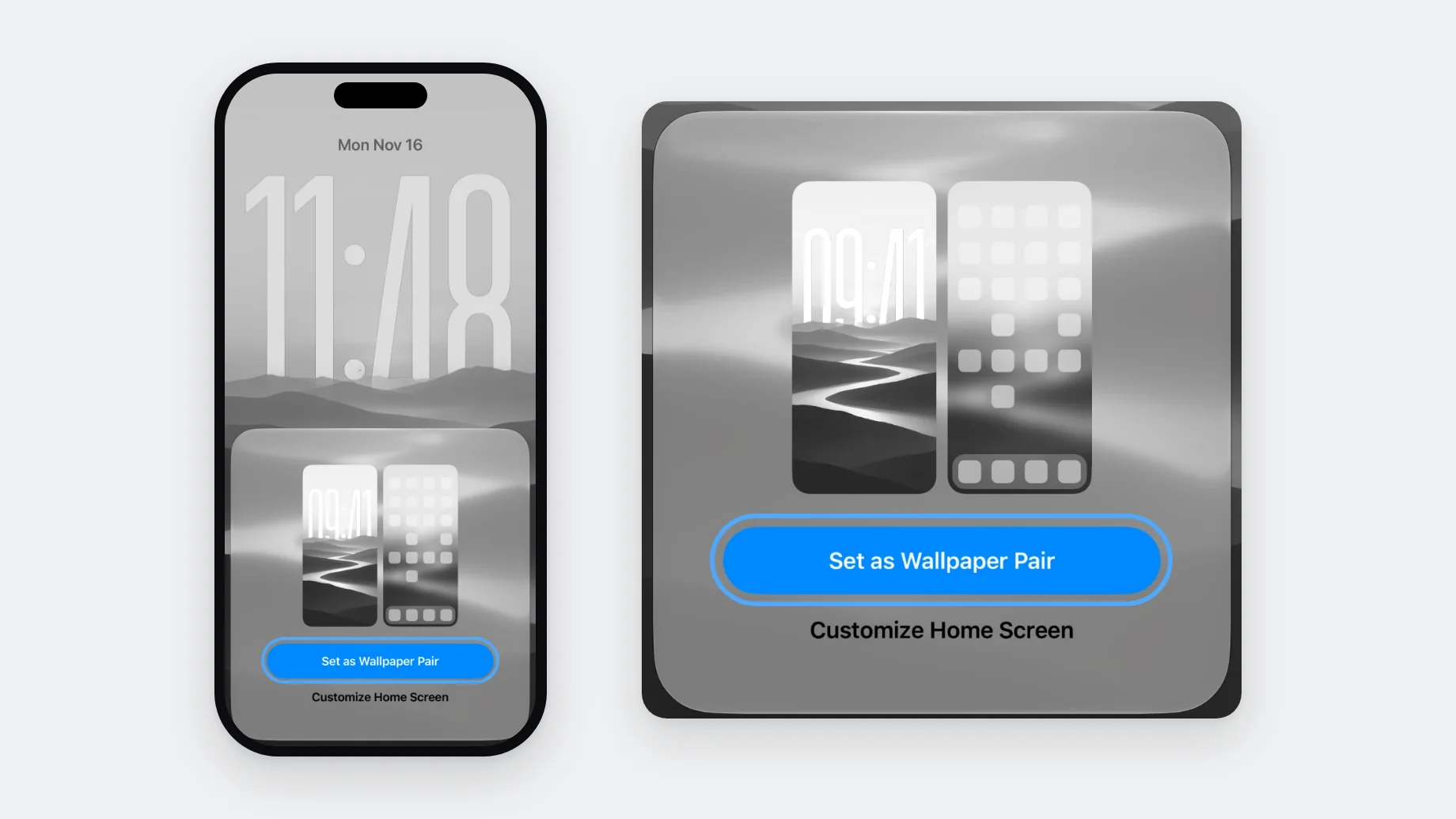
After you tap Add, iPhone asks how to use the image on the Home Screen. Tap Set as Wallpaper Pair to use the same image on both screens. Tap Customize Home Screen if you want a different photo, a plain color, or a blurred version behind your apps.
How do you change your wallpaper in Settings?
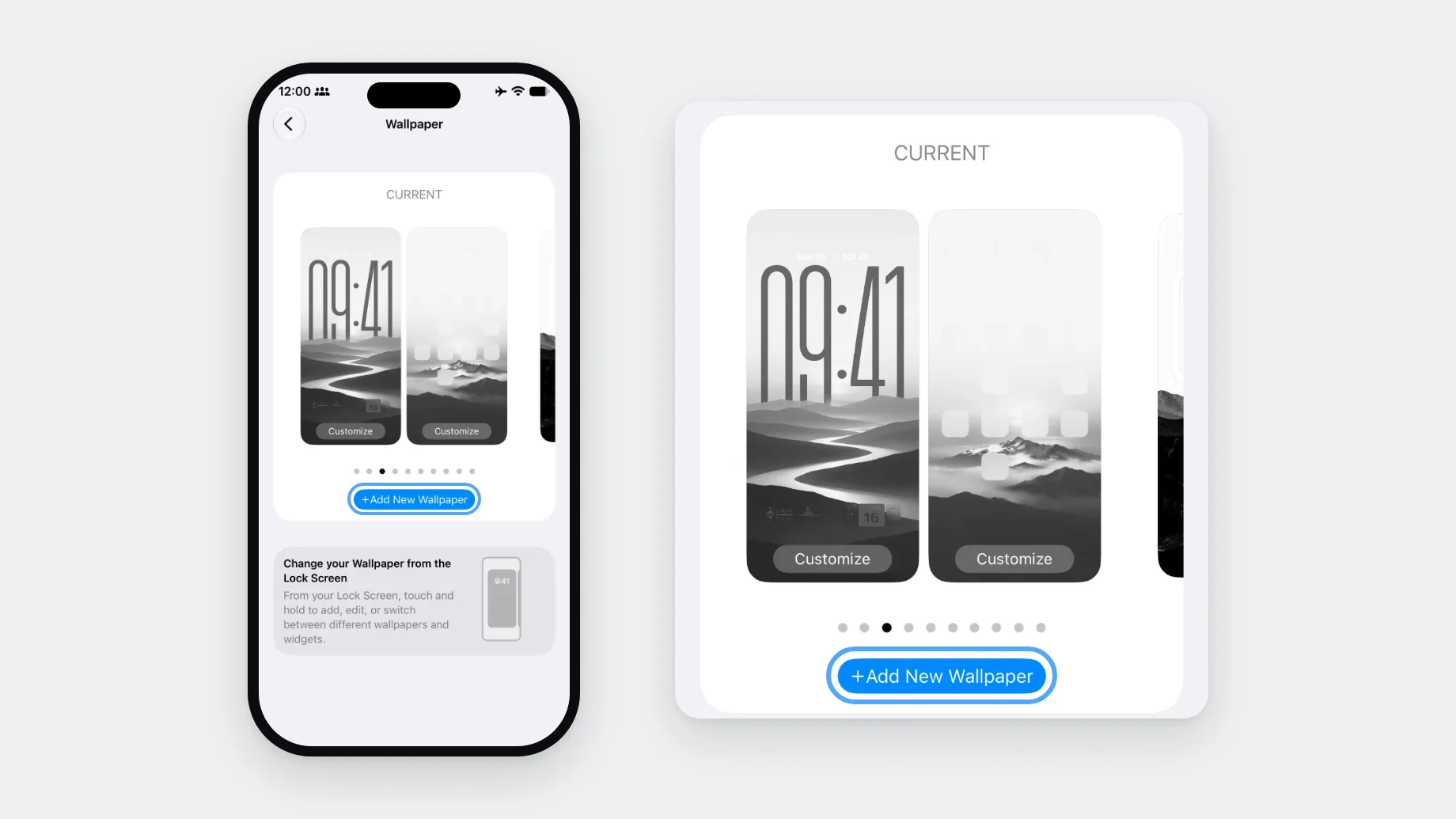
Settings shows your current Lock Screen and Home Screen side by side, which makes it easier to see what you're changing.
- Open Settings and tap Wallpaper.
- Tap Add New Wallpaper, then choose a photo, position it and tap Add as described above.
- To edit what you already have, tap Customize under the Lock Screen preview or under the Home Screen preview. Swipe the previews left or right to see your other saved wallpapers.
How do you change only your Home Screen wallpaper?
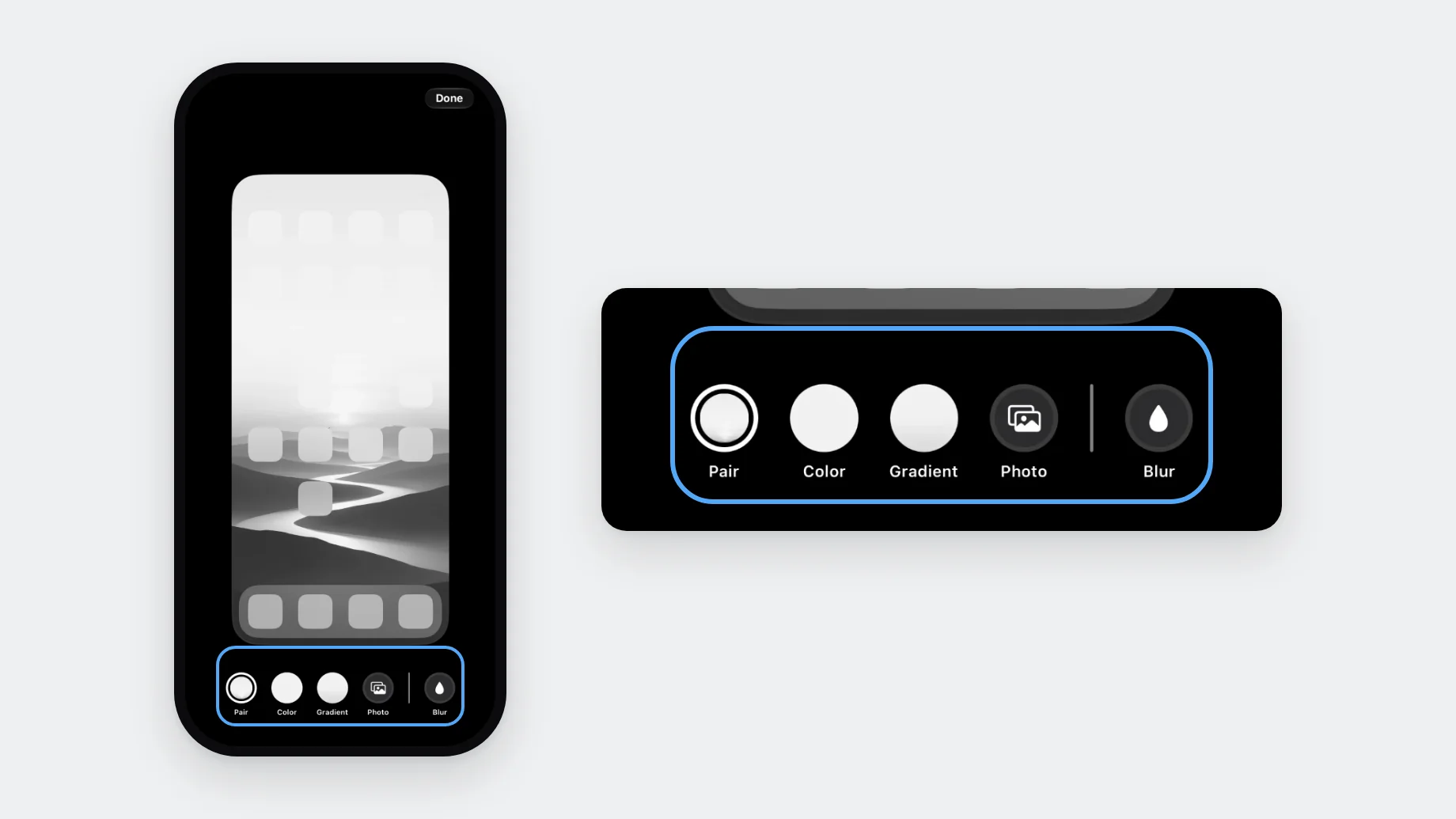
Open Settings > Wallpaper and tap Customize under the Home Screen preview (the one on the right). Your Lock Screen stays as it is. You get the same screen when you tap Customize Home Screen after adding a new wallpaper. Pick one of the options at the bottom, then tap Done:
- Pair uses the same image as the Lock Screen.
- Color and Gradient give you a plain background.
- Photo lets you pick a different photo for the Home Screen only.
- Blur blurs the image so icons and widgets are easier to read.
How do you switch between or delete saved wallpapers?
Your iPhone keeps every Lock Screen you've made. Touch and hold the Lock Screen, swipe left or right through the gallery, and tap the one you want. In Settings > Wallpaper you can swipe through the same set.
To delete one, open the gallery, swipe up on that wallpaper and tap the trash icon.
Can your iPhone change the wallpaper automatically?
Yes, in two ways:
- Photo Shuffle, on the Add New Wallpaper screen, rotates through a set of photos. You can point it at an album or pick the photos yourself, so an album of saved wallpapers works well. You choose how often it changes: On Tap, On Lock, Hourly or Daily.
- The Focus button under a wallpaper in the gallery links it to a Focus. When that Focus turns on, your iPhone switches to that Lock Screen.
Why does my wallpaper look zoomed in or blurry?
A zoomed-in wallpaper is usually a cropping problem. iOS crops the image to fit your screen, and a landscape or square photo loses more than a tall one. Pinch closed in the editor to zoom out and see more of the image, and pick portrait images when you can.
If only the Home Screen looks blurry, check Blur first: open Settings > Wallpaper, tap Customize under the Home Screen and turn Blur off. If both screens look soft, the source file is probably too small. Screenshots, thumbnails and images saved from social media are often too low-resolution for a modern iPhone screen, and zooming in a lot makes it worse. Our wallpaper size and resolution guide lists the screen size for each model.
What should you do if the wallpaper won't change?
Check these first:
- You edited a different Lock Screen. The gallery holds several, so make sure the one you want is in the middle when you tap Customize.
- A Focus is linked. If a Focus with its own Lock Screen is on, your iPhone shows that Lock Screen instead.
- Photo Shuffle is on, so the wallpaper keeps moving to the next photo.
- Only the Lock Screen changed. If your Home Screen is set to Color, Gradient or a different Photo, open Settings > Wallpaper, tap Customize under the Home Screen, and choose Pair.
- The image isn't in Photos yet. If it's only in a ZIP or the Files app, save it to Photos first.
- You can't open the wallpaper gallery. If Face ID doesn't let you in, touch and hold the Lock Screen again and enter your passcode.
What about Depth Effect and Spatial Scene?
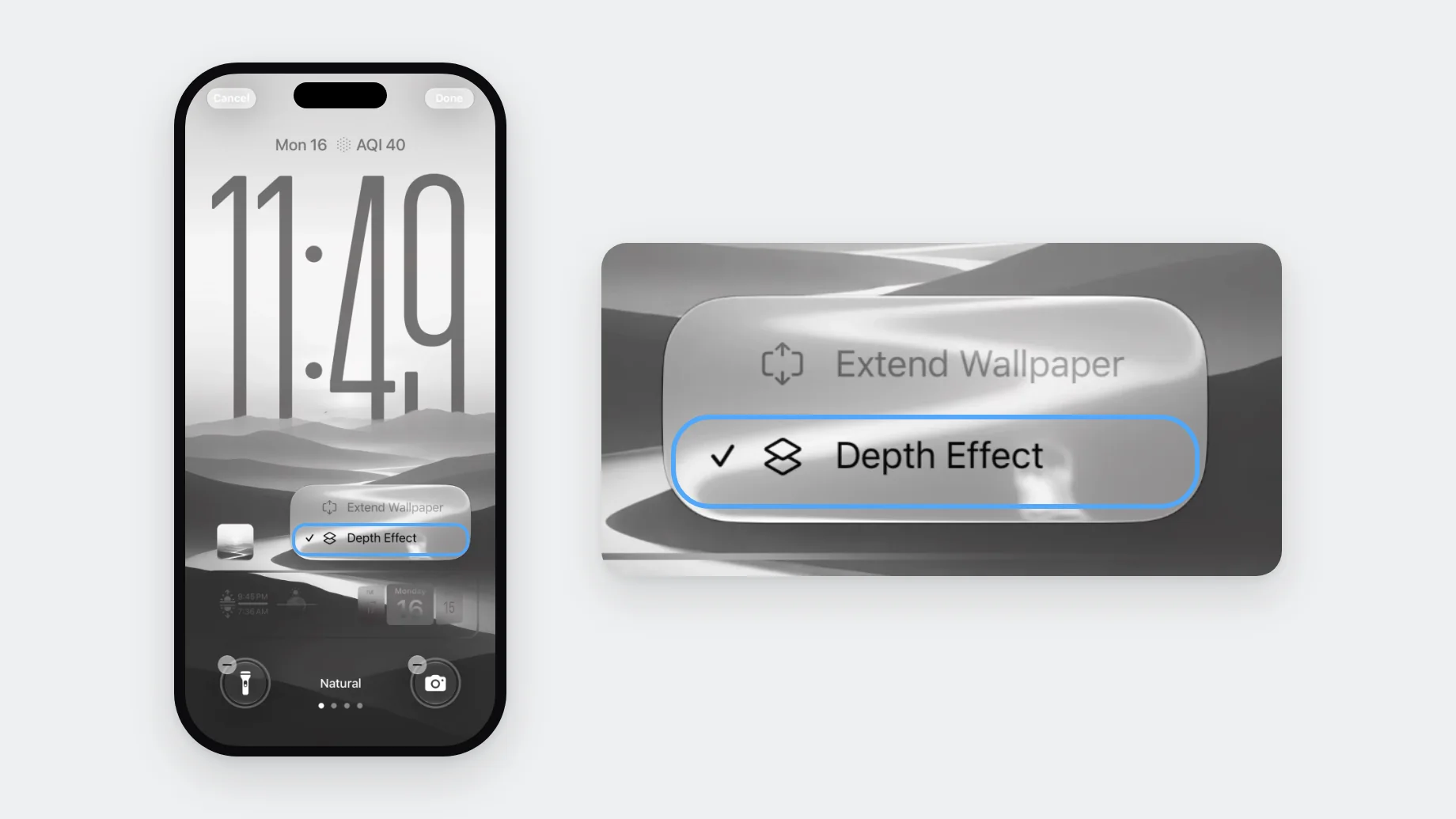
Depth Effect places part of the photo in front of the clock. Turn it on or off from the … menu while you edit the Lock Screen. In our test on iOS 27.2.1 it stayed on with Lock Screen widgets added. Spatial Scene is a different feature: it turns certain photos into a 3D wallpaper. Apple says it needs iPhone 12 or later with iOS 26, and the 3D effect shows only on the Lock Screen, even if you set the photo as a Wallpaper Pair.
Our Depth Effect guide explains how the two differ and what kind of photo works, and our Depth Effect collection has wallpapers framed for it.
Find your next iPhone wallpaper
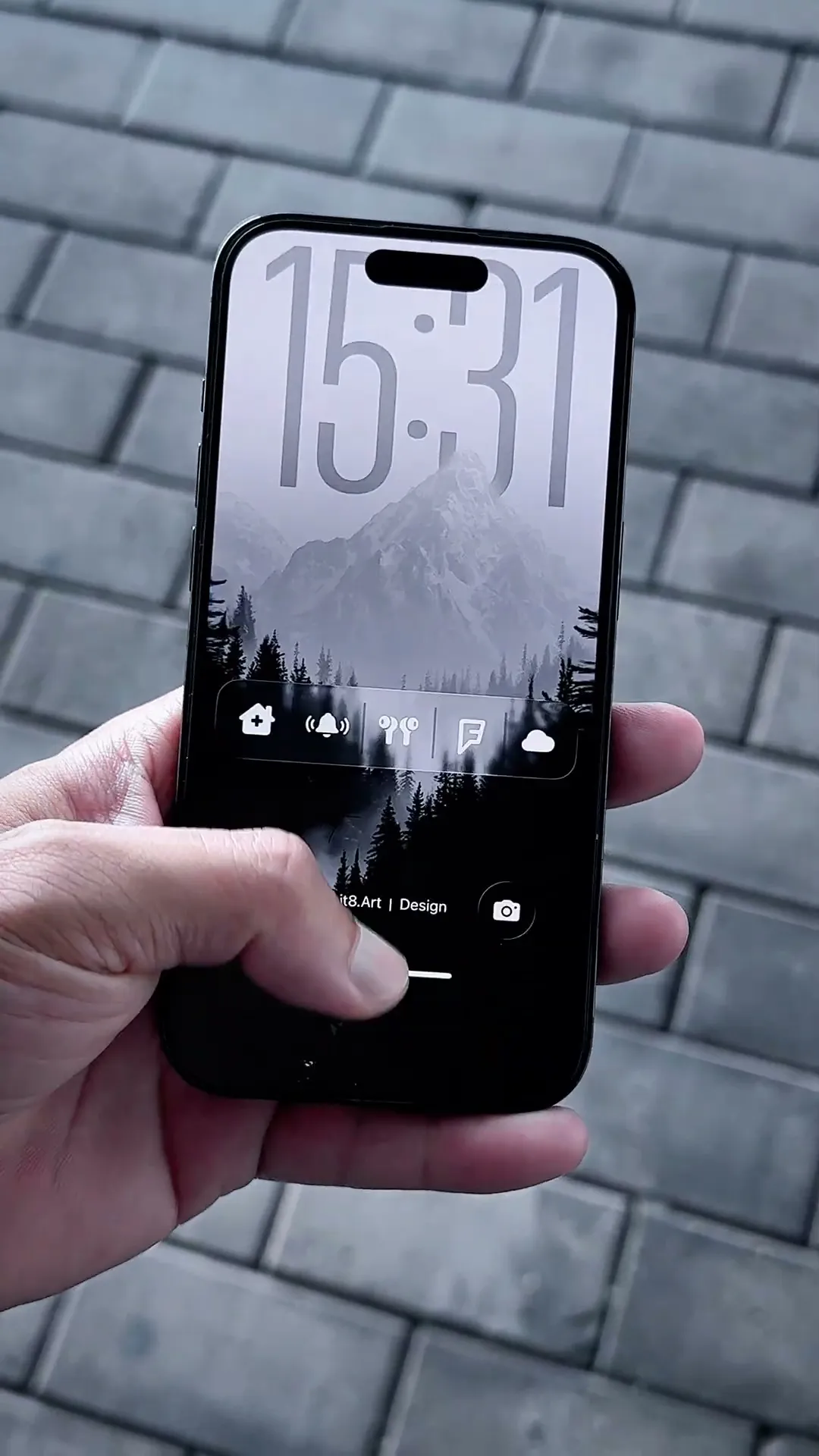
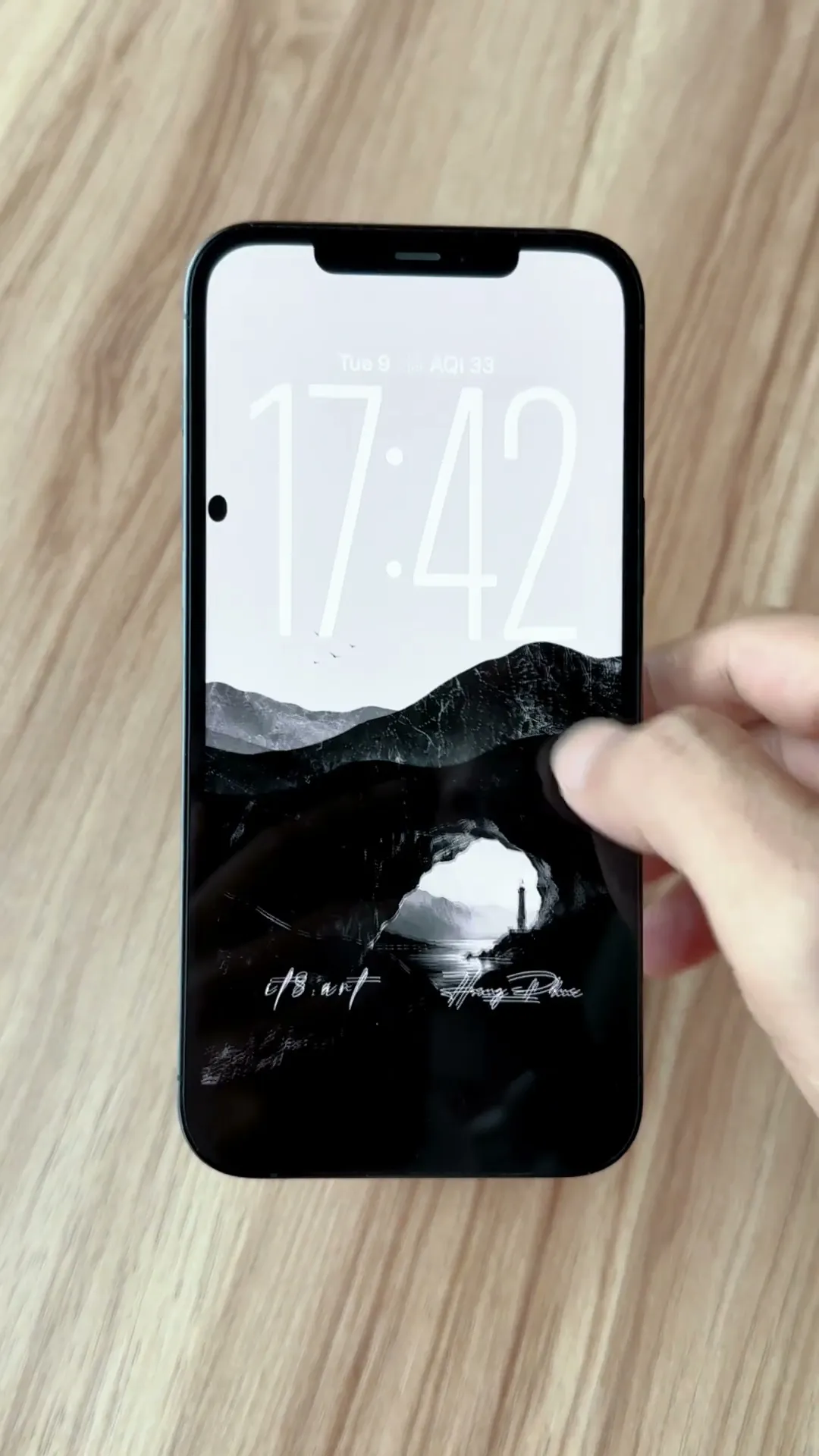
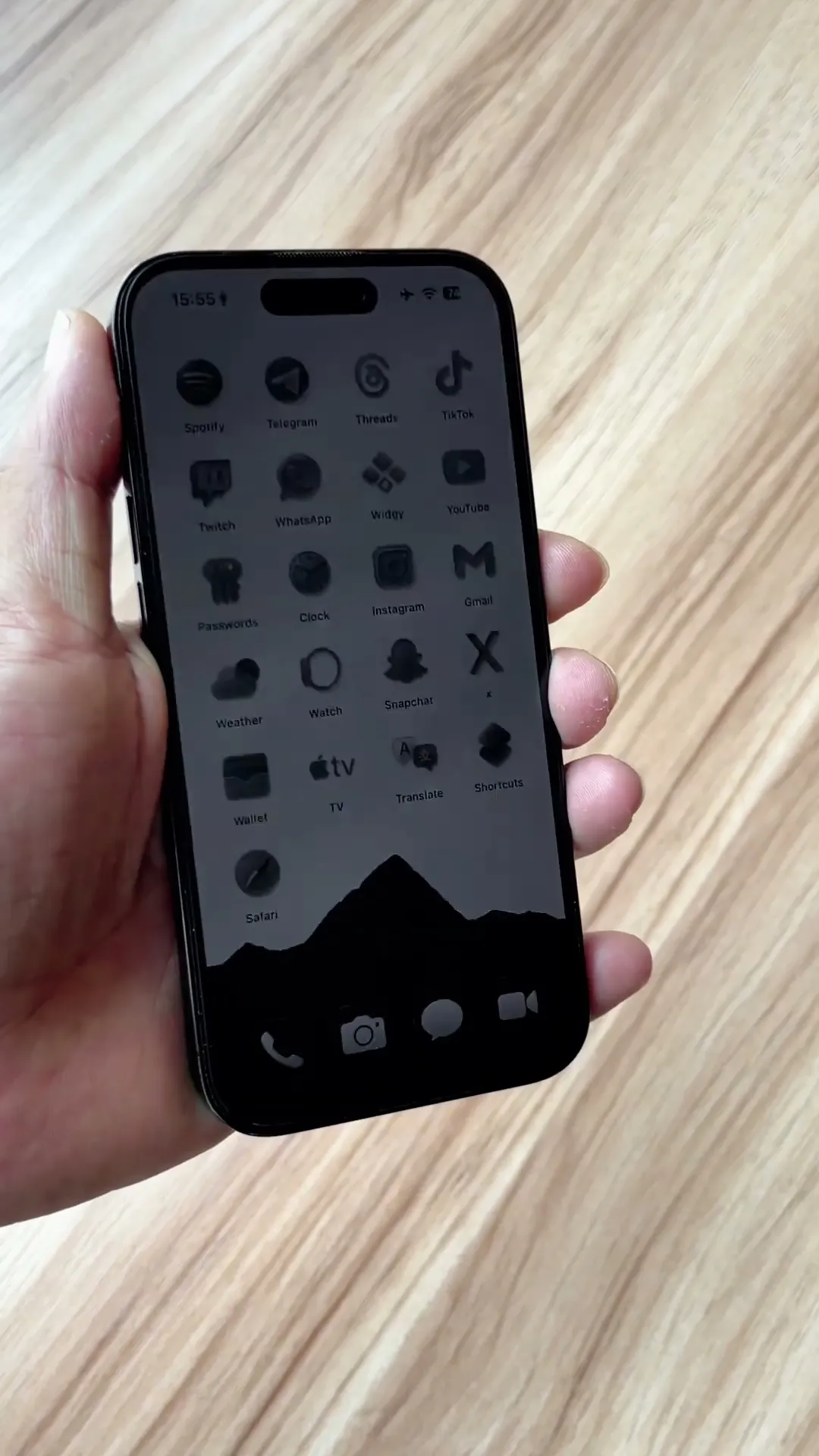
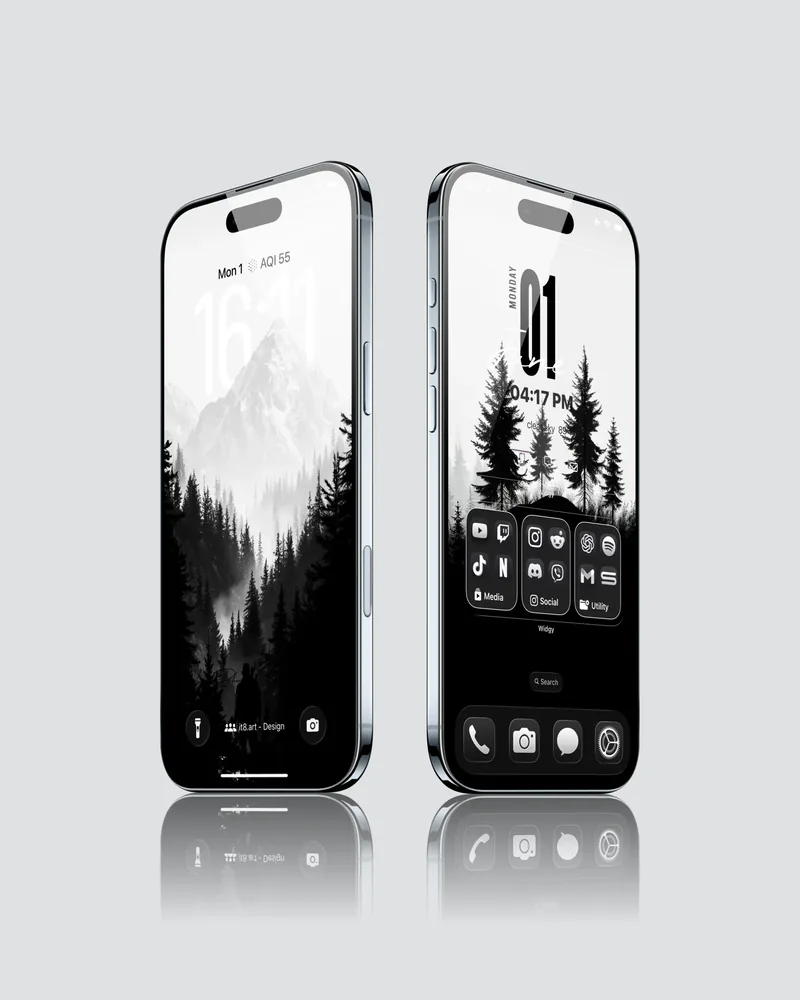
Browse our minimalist and monochrome, dark, and moody nature and ink landscape collections.
 4K
 4K
 8K