Why isn’t there one perfect iPhone wallpaper size?
There is no single perfect iPhone wallpaper size because iPhone models use different display sizes, aspect ratios, and interface layouts. iOS can also zoom or reposition a photo when it is applied, so one fixed pixel dimension cannot guarantee the same crop on every device.
A strong source file matters more than chasing one universal number. Use a high-resolution portrait image with room around the main subject, then confirm the final framing in the iPhone wallpaper editor.
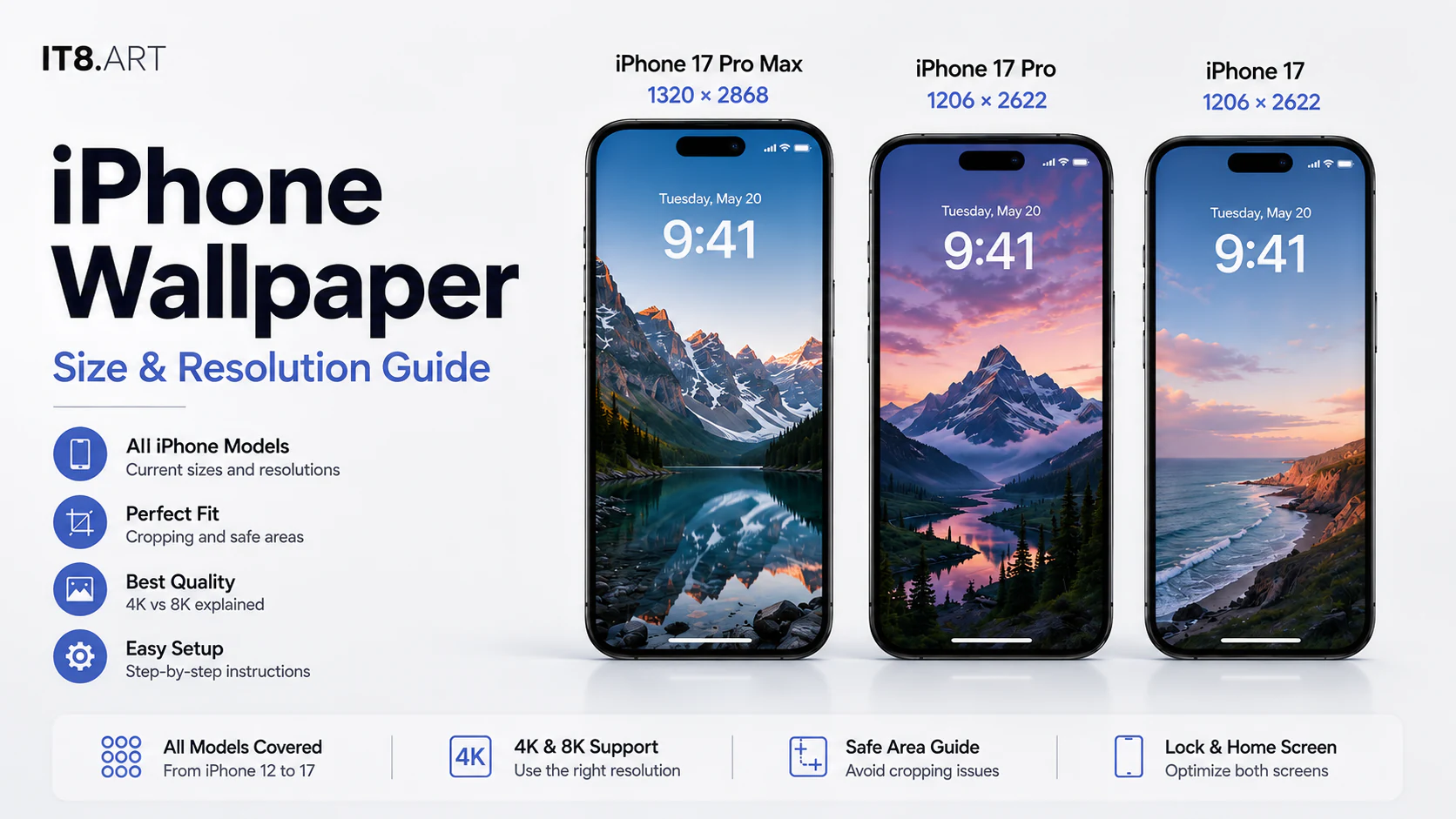
What wallpaper resolution should you use for each iPhone?
Use an equal-or-larger portrait source than the target iPhone display as a practical starting point. Leave extra space around the main subject for iOS cropping, the clock, widgets, and controls.
| Model group | Display resolution (portrait) | Approx. ratio |
|---|---|---|
| iPhone 18 Pro Max | 1320 × 2868 px | ≈ 19.5:9 |
| iPhone 18 Pro | 1206 × 2622 px | ≈ 19.5:9 |
| iPhone 17 Pro Max / 16 Pro Max | 1320 × 2868 px | ≈ 19.5:9 |
| iPhone 17 / 17 Pro / 16 Pro | 1206 × 2622 px | ≈ 19.5:9 |
| iPhone Air | 1260 × 2736 px | ≈ 19.5:9 |
| iPhone 16 / 15 / 15 Pro / 14 Pro | 1179 × 2556 px | ≈ 19.5:9 |
| iPhone 16 Plus / 15 Plus / 15 Pro Max / 14 Pro Max | 1290 × 2796 px | ≈ 19.5:9 |
| iPhone 17e / 16e / 14 / 13 / 13 Pro / 12 / 12 Pro | 1170 × 2532 px | ≈ 19.5:9 |
| iPhone 14 Plus / 13 Pro Max / 12 Pro Max | 1284 × 2778 px | ≈ 19.5:9 |
| iPhone 13 mini / 12 mini | 1080 × 2340 px | ≈ 19.5:9 |
| iPhone SE (3rd generation) | 750 × 1334 px | ≈ 16:9 |
These values are portrait display-resolution references from Apple’s technical specifications, not official wallpaper canvas requirements. For better cropping flexibility, use an equal-or-larger portrait source and keep extra space around the main subject.
How does it8.art test iPhone wallpaper layouts?
it8.art has tested wallpaper layouts on iPhone 15 Pro and Pro Max, iPhone 16 Pro and Pro Max, iPhone 17 Pro and Pro Max, and iPhone Air running iOS 26 and iOS 27. These checks focus on crop behavior, interface clearance, and composition across current Pro, Pro Max, and Air screen sizes.
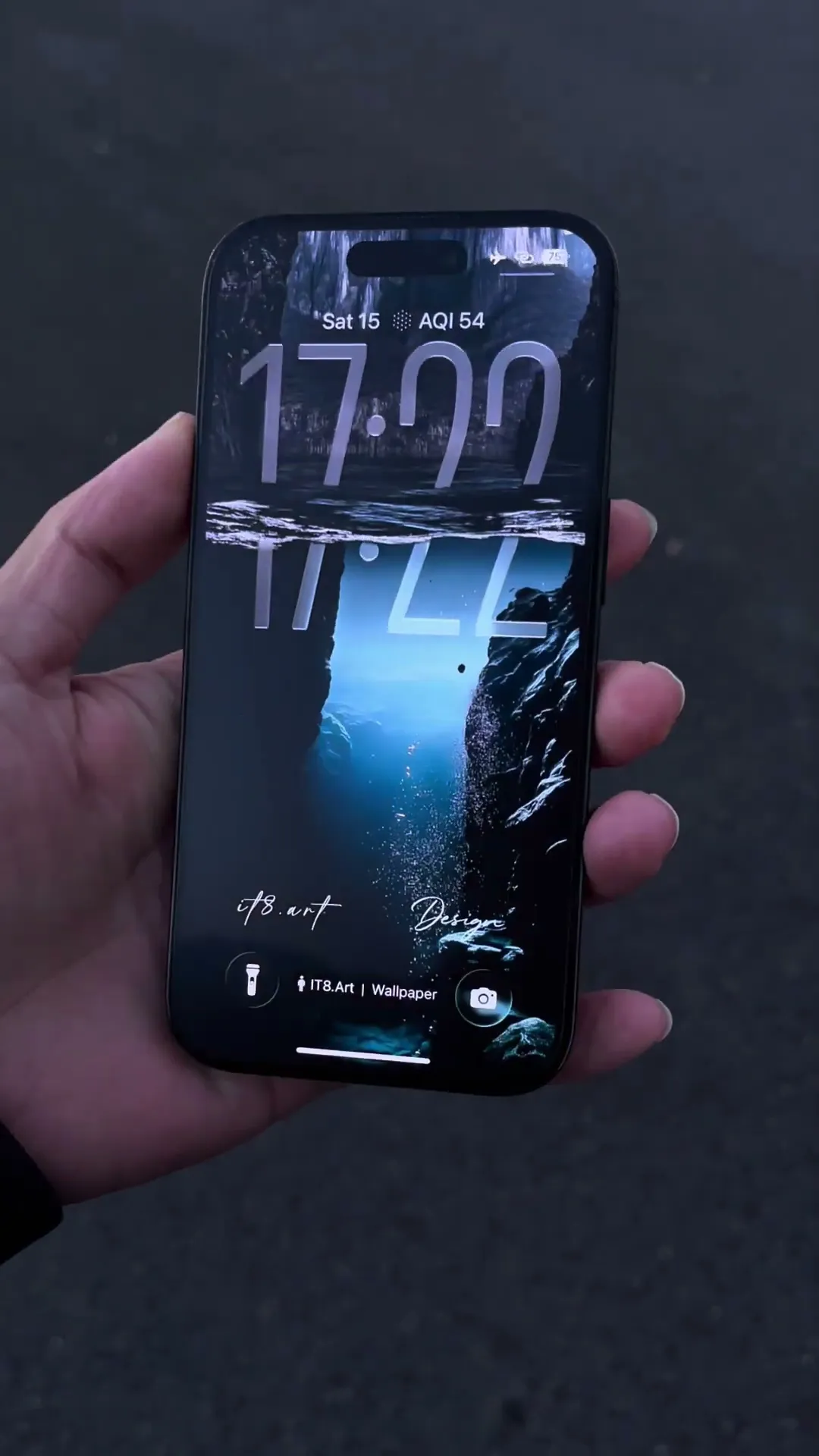
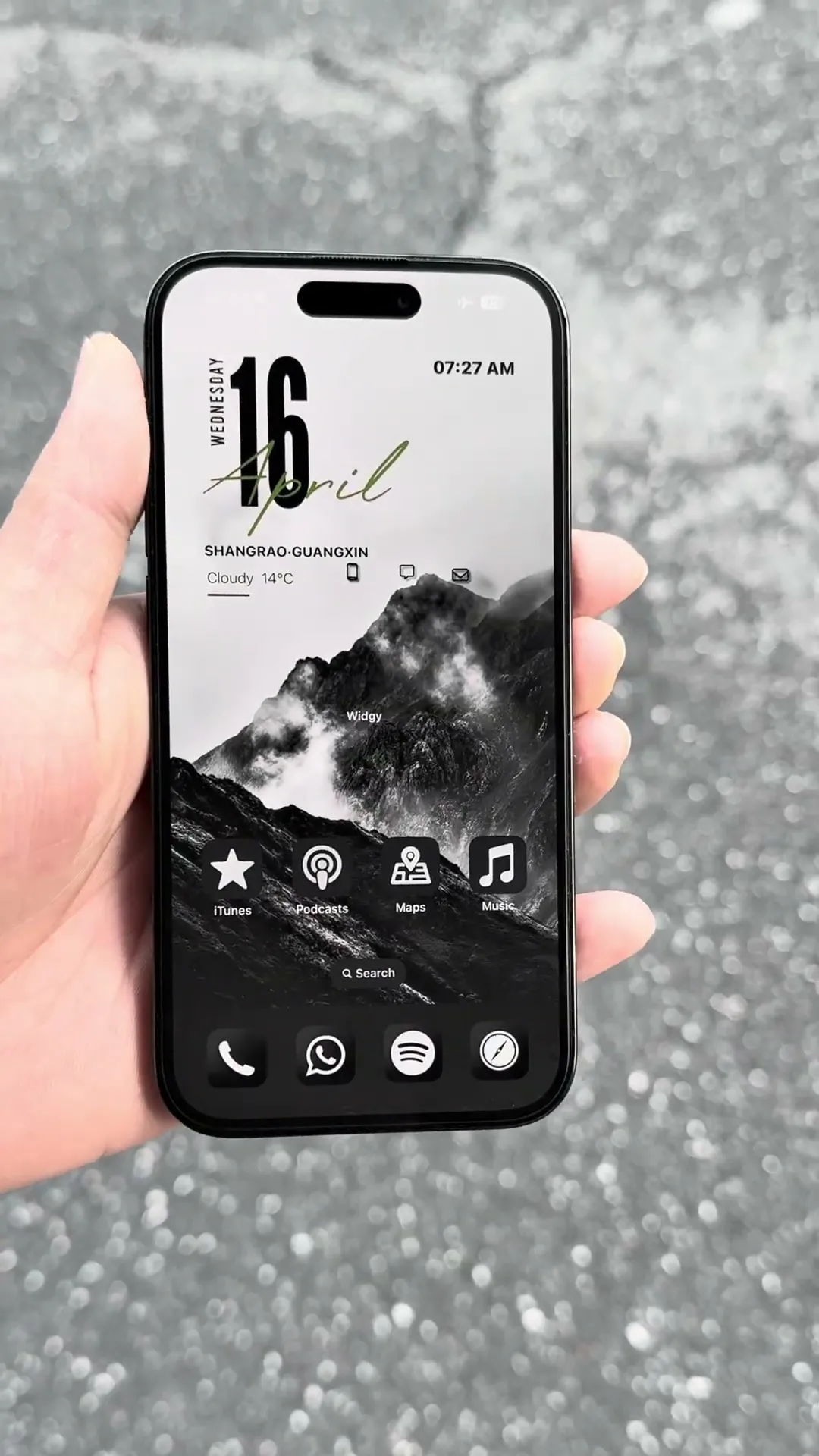
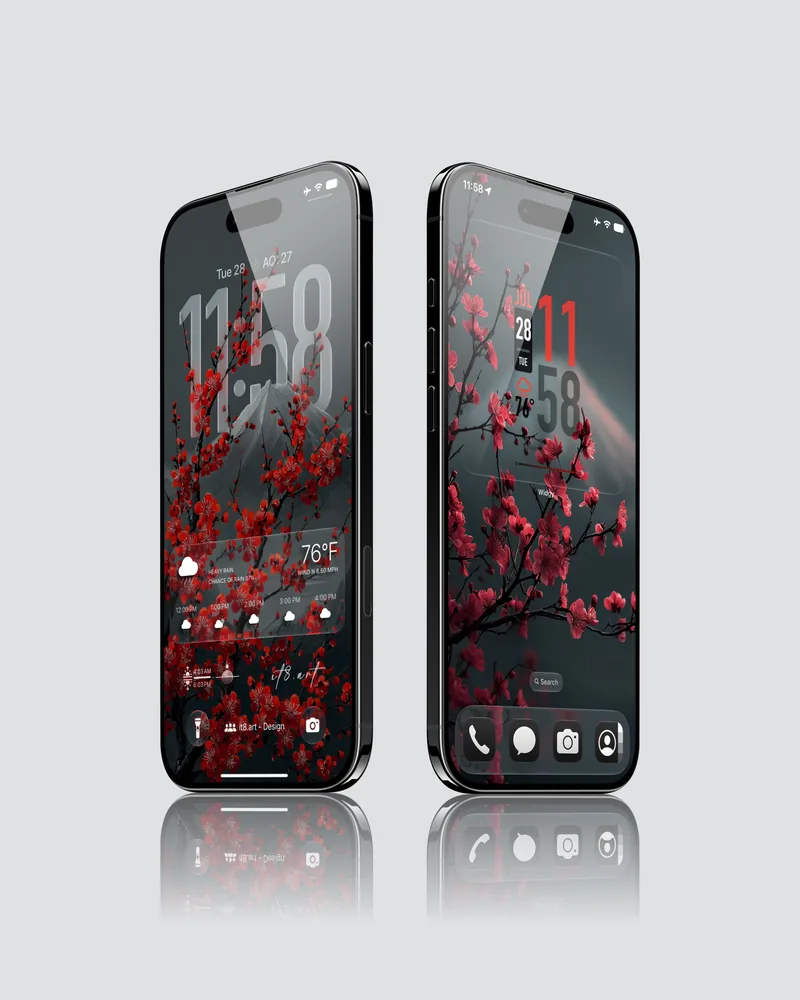
Wallpaper masters are designed at a 59:128 portrait ratio in 4K resolution. Clock, widget, Dynamic Island, control, and app-icon areas are considered during composition, then the final framing is checked on-device because iOS can crop the same source differently across models and screen layouts.
What should you check before using a wallpaper?
Check the source resolution, orientation, safe areas, contrast, and exact product-file details before applying a wallpaper. These five checks prevent most avoidable crop and readability problems.
- Resolution: choose a file large enough to remain clear after the crop you want.
- Orientation: portrait artwork normally requires less cropping than landscape artwork.
- Safe areas: keep faces, text, and important artwork away from the clock, widgets, Dynamic Island, and bottom controls.
- Contrast: confirm that clock text, widgets, and app labels remain readable over the image.
- File details: use the exact dimensions, format, and included-file information shown on the product page.
Is 4K or 8K better for an iPhone wallpaper?
A well-composed 4K source is generally sufficient for current iPhone wallpaper use. An 8K source mainly provides more room for cropping; it does not automatically look sharper on the phone.
4K and 8K describe the source image resolution, not a promise that the phone will display every source pixel. Composition, compression, and the final device crop still determine how the wallpaper looks.
Do not enlarge a small or compressed preview image. Download the original file supplied with the product and apply that version from Photos.
| Image source | Practical use | Important limit |
|---|---|---|
| Original 4K file | Usually provides enough detail for current iPhone Lock Screen and Home Screen use. | Visible quality still depends on composition, compression, and how far the image is cropped or enlarged. |
| Original 8K file | Provides additional source pixels for tighter crops or reuse across different screen layouts. | The iPhone does not display every source pixel, so 8K does not guarantee a visibly sharper result. |
| Product-page preview | Shows the artwork, crop, and possible screen layout before purchase. | It may be compressed for browsing and should not be used in place of the original downloaded file. |
Use the exact dimensions and format stated on the product page as the authority for a specific download. Resolution alone does not determine the final wallpaper quality.
How do you set and crop an iPhone wallpaper?
Apply the original downloaded file from Photos, then adjust the Lock Screen and Home Screen crops separately when their interface elements need different spacing.
- Open Settings, choose Wallpaper, and select Add New Wallpaper.
- Choose the original wallpaper file from Photos.
- Move or zoom the image only as much as needed, keeping the subject clear of the clock and widgets.
- Choose Set as Wallpaper Pair, or customize the Home Screen separately when it needs a quieter crop.
- Check both screens with your normal widgets and icons before keeping the final layout.
What should you check before buying a wallpaper pack?
Before buying, confirm the file count, image format, source resolution, compatibility notes, preview scope, and license shown on that product page.
- Check how many wallpaper files are included.
- Confirm the listed image format and source resolution.
- Review the gallery as a layout preview, not as the downloadable file itself.
- Read compatibility notes for crop, widgets, and operating-system differences.
- Use the product page for the current included files, price, and license terms.
 4K
4K 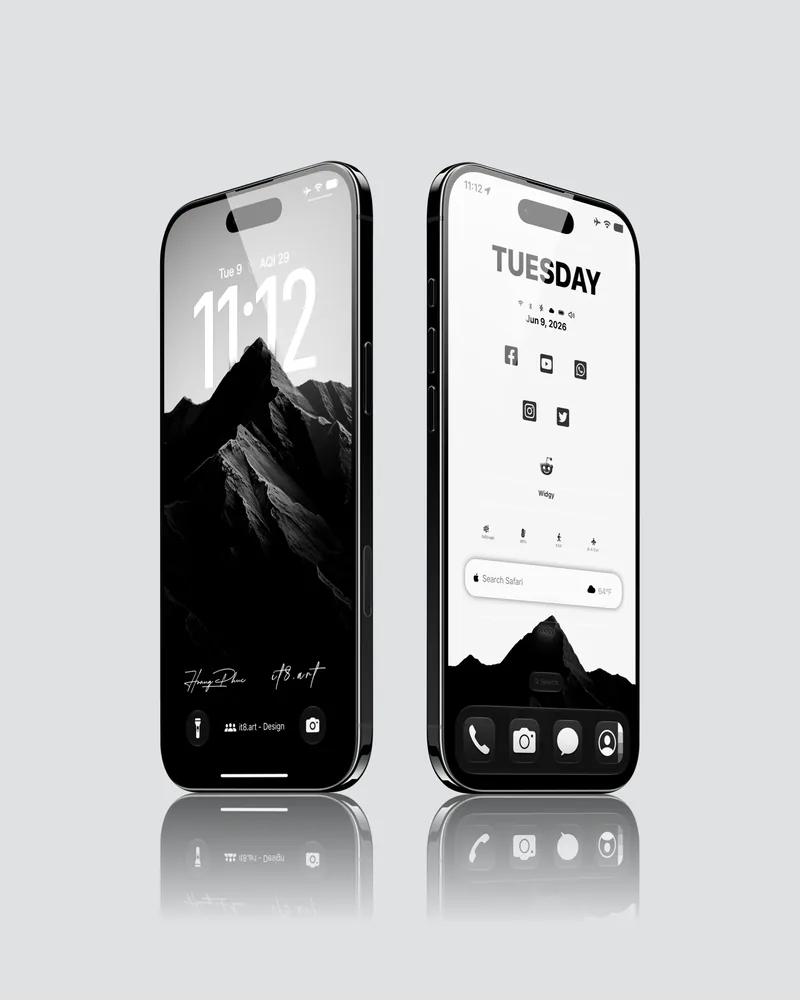 8K
8K 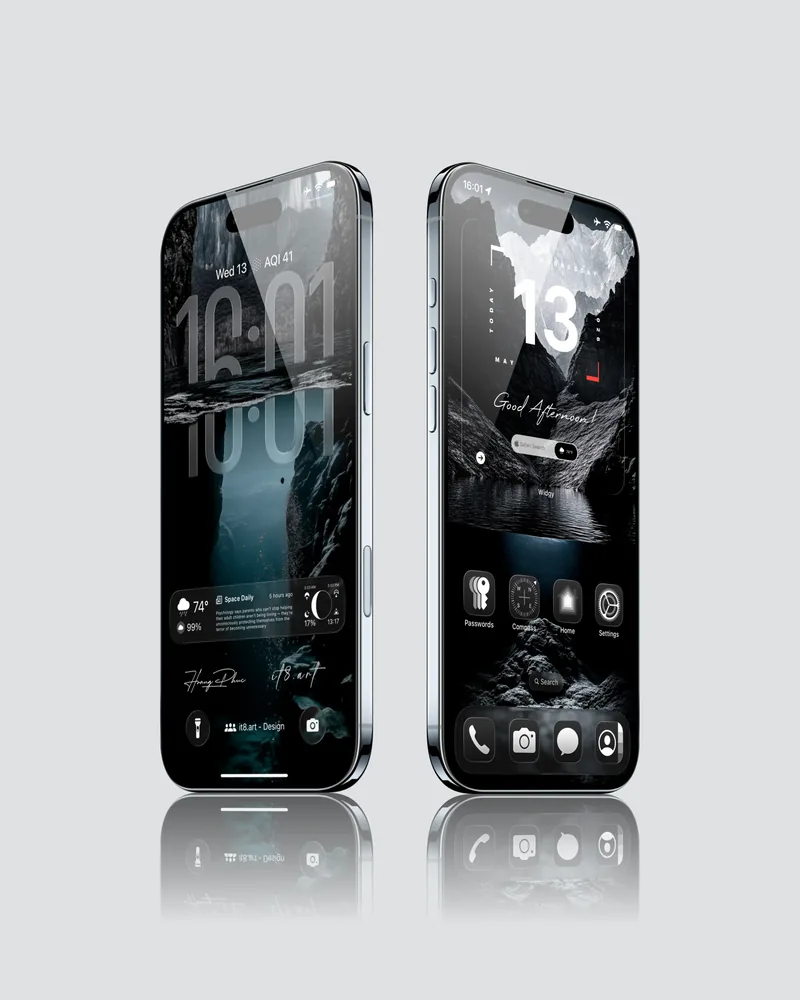 4K
4K 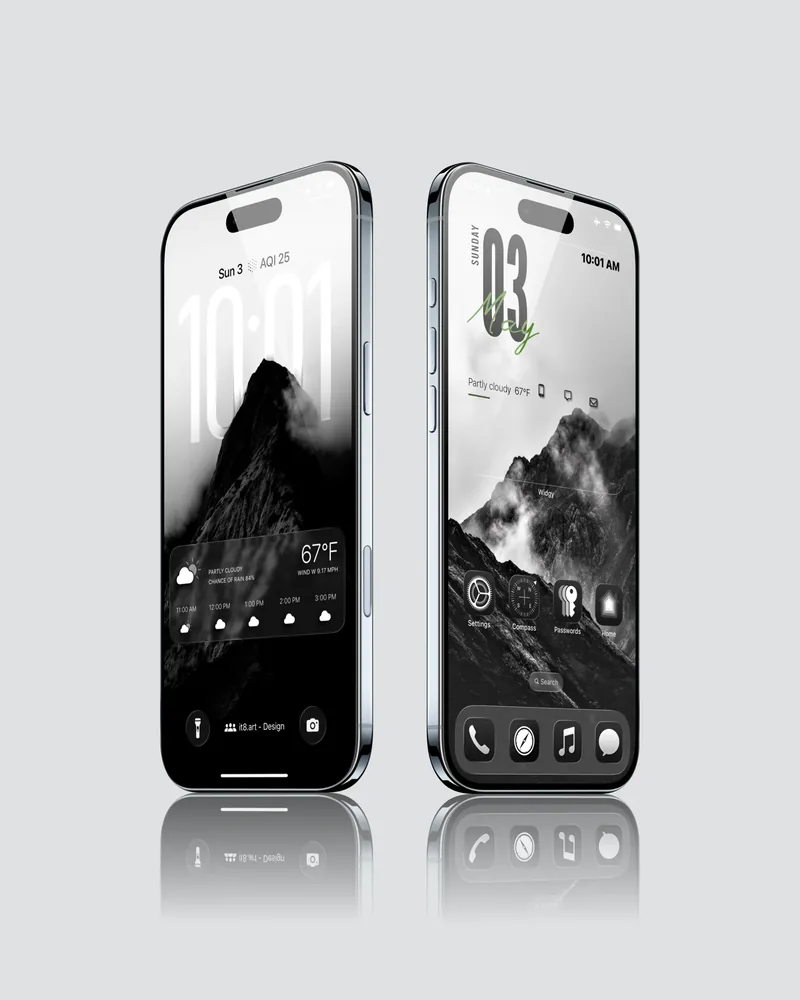 4K
4K