
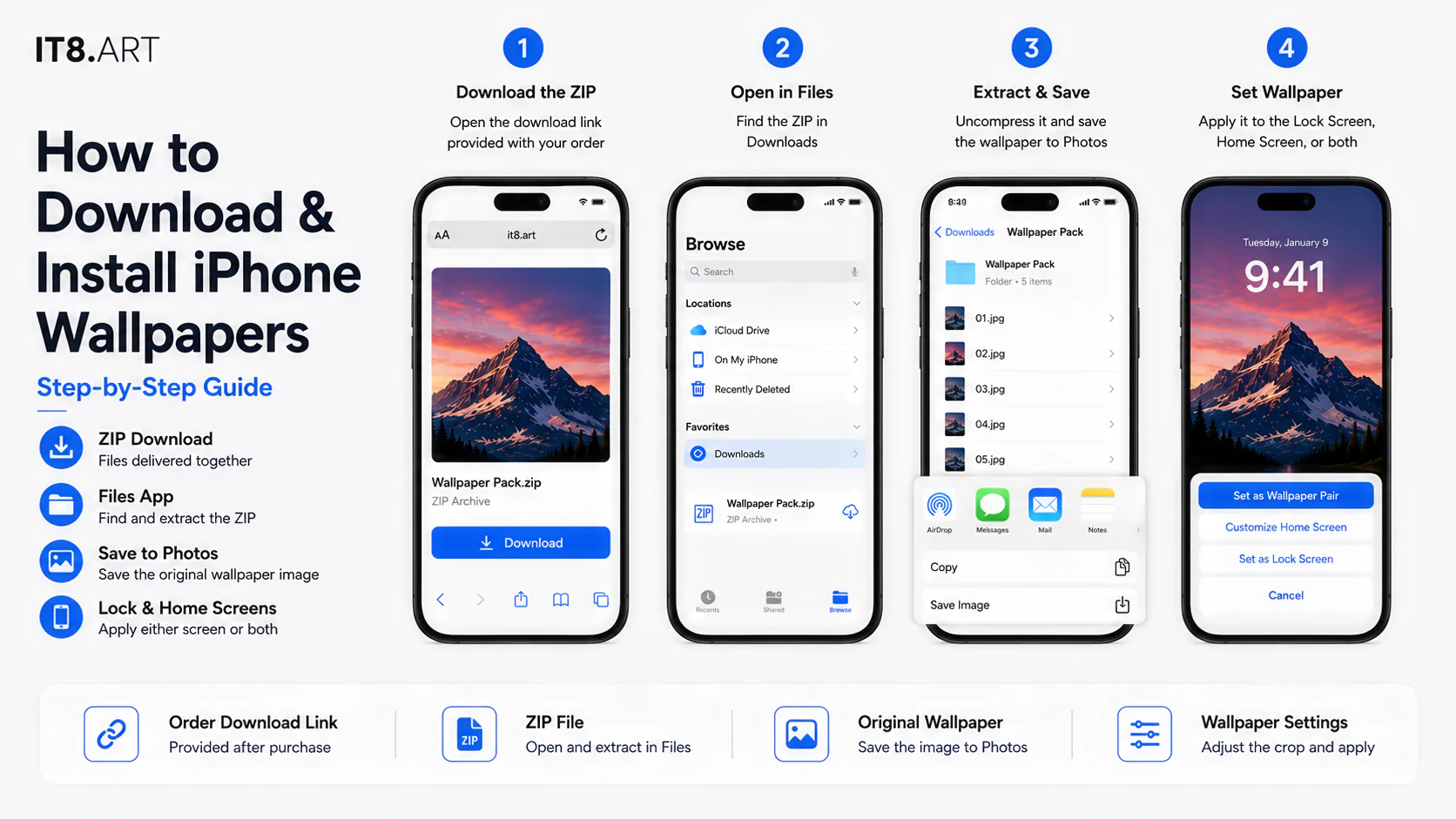
What happens after payment?
After payment, open the download link provided with your order and allow the ZIP file to finish downloading. On iPhone, the download is commonly available in the Files app, where the ZIP keeps the included wallpaper files together for delivery.
The exact number, format, and resolution of the included files can vary by product. Check the product page for the current contents of the pack you purchased.
How do you find and extract the ZIP on iPhone?
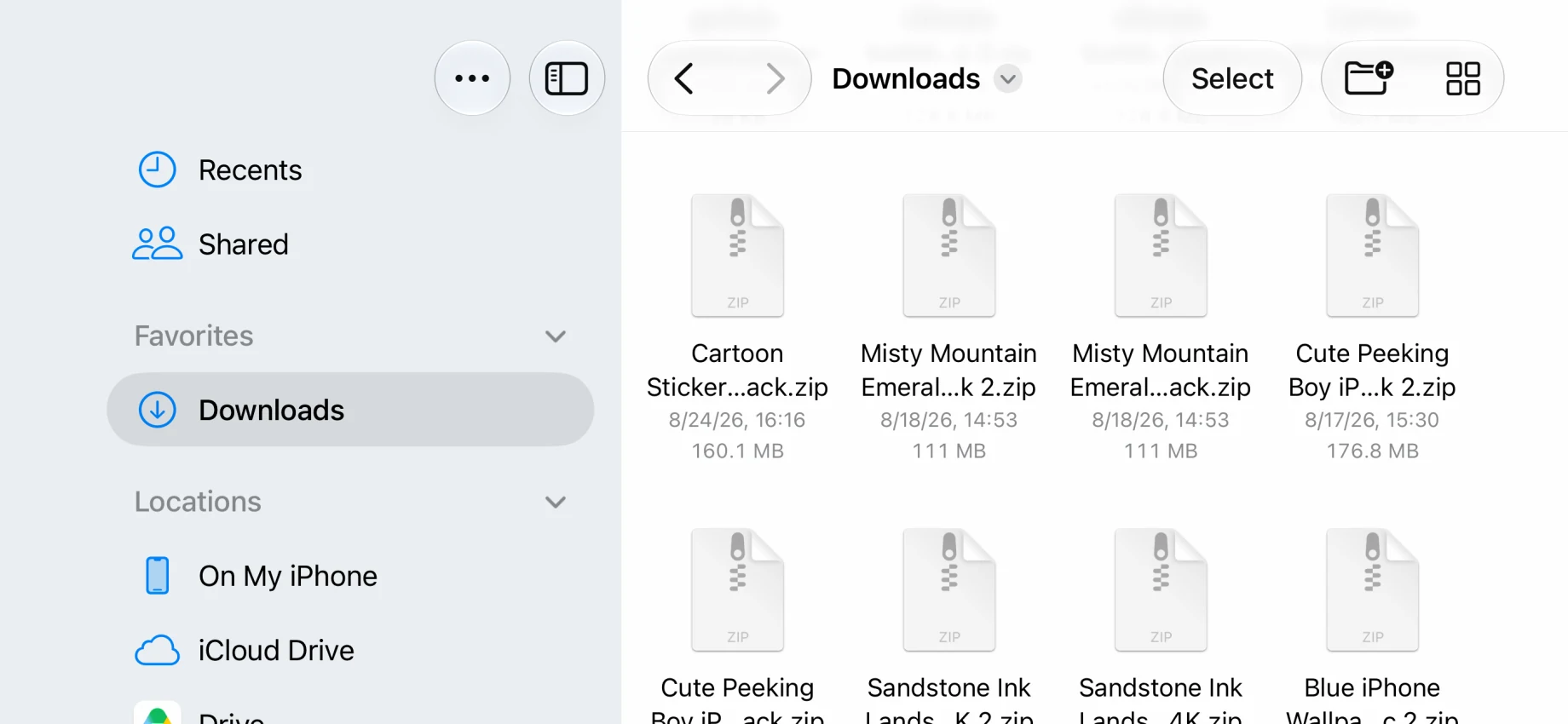
Open Files, locate the completed ZIP in Downloads, and tap it to create an extracted folder containing the original product files.
- Tap the download link provided with your order and wait for the download to finish.
- Open the Files app on your iPhone.
- Choose Browse, then open Downloads. If the ZIP is not there, check the Downloads button in Safari and the download location configured for Safari.
- Tap the ZIP file to create an extracted folder. If needed, touch and hold the ZIP, then choose Uncompress.
- Open the extracted folder and confirm that the wallpaper images are present.
How do you save the wallpapers to Photos?
Extracting the ZIP does not automatically add its images to Photos. Save the original wallpaper image from Files to Photos before opening the iPhone wallpaper settings.
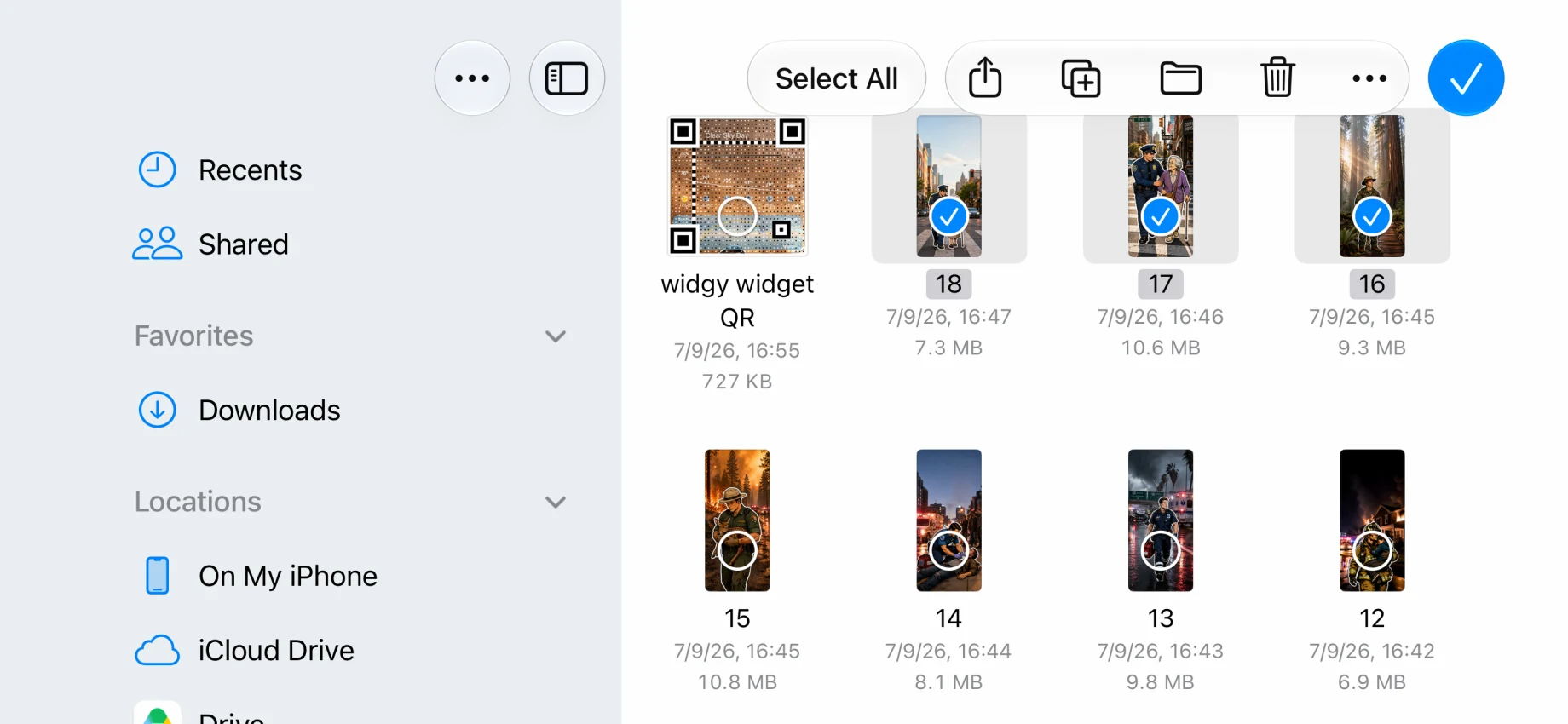
- Open the extracted folder in Files.
- Open or select the wallpaper image you want to use.
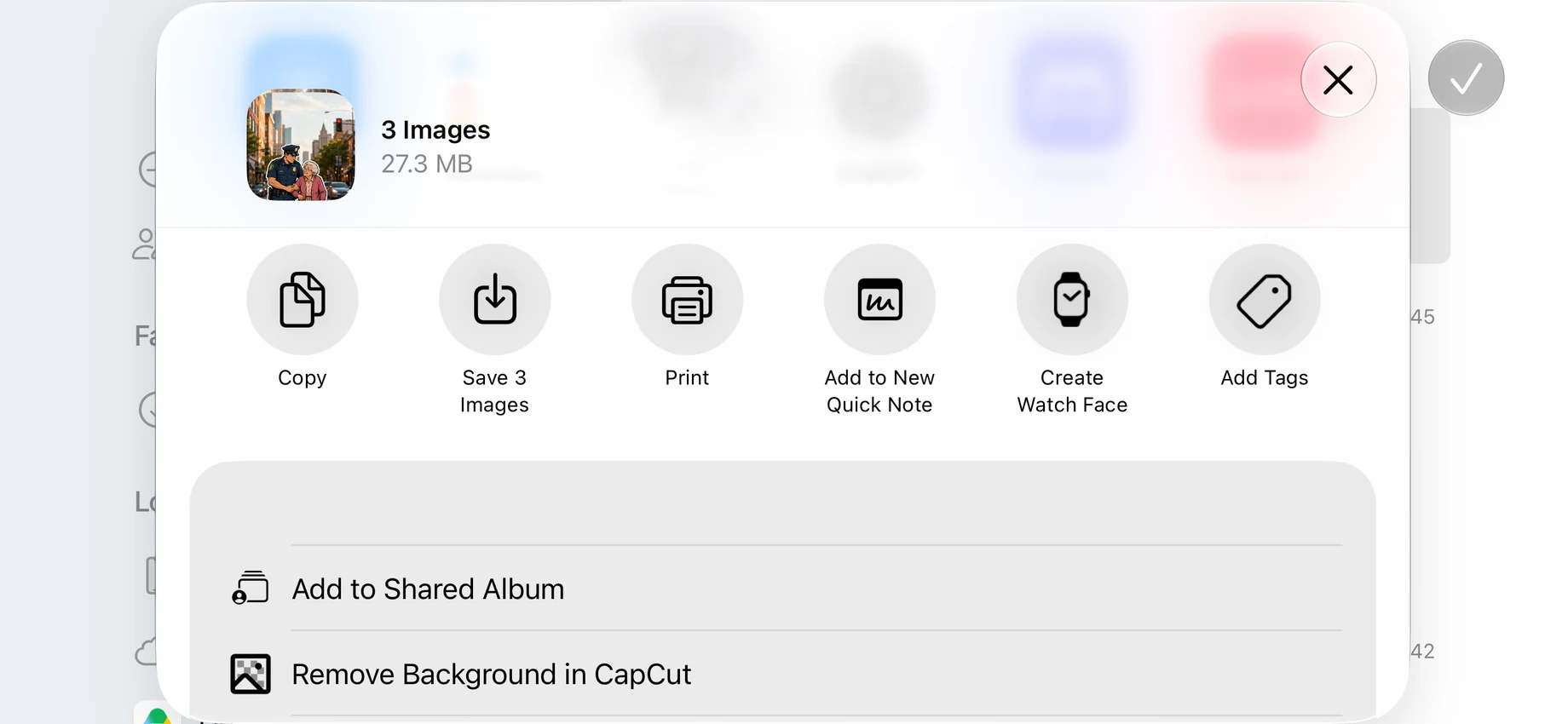
- Use Share, then choose the available option to save the image to Photos. The exact label can vary by iOS version and file view.
- Open Photos and confirm that the original wallpaper image is available before continuing to the wallpaper settings.
How do you set the Lock Screen and Home Screen?
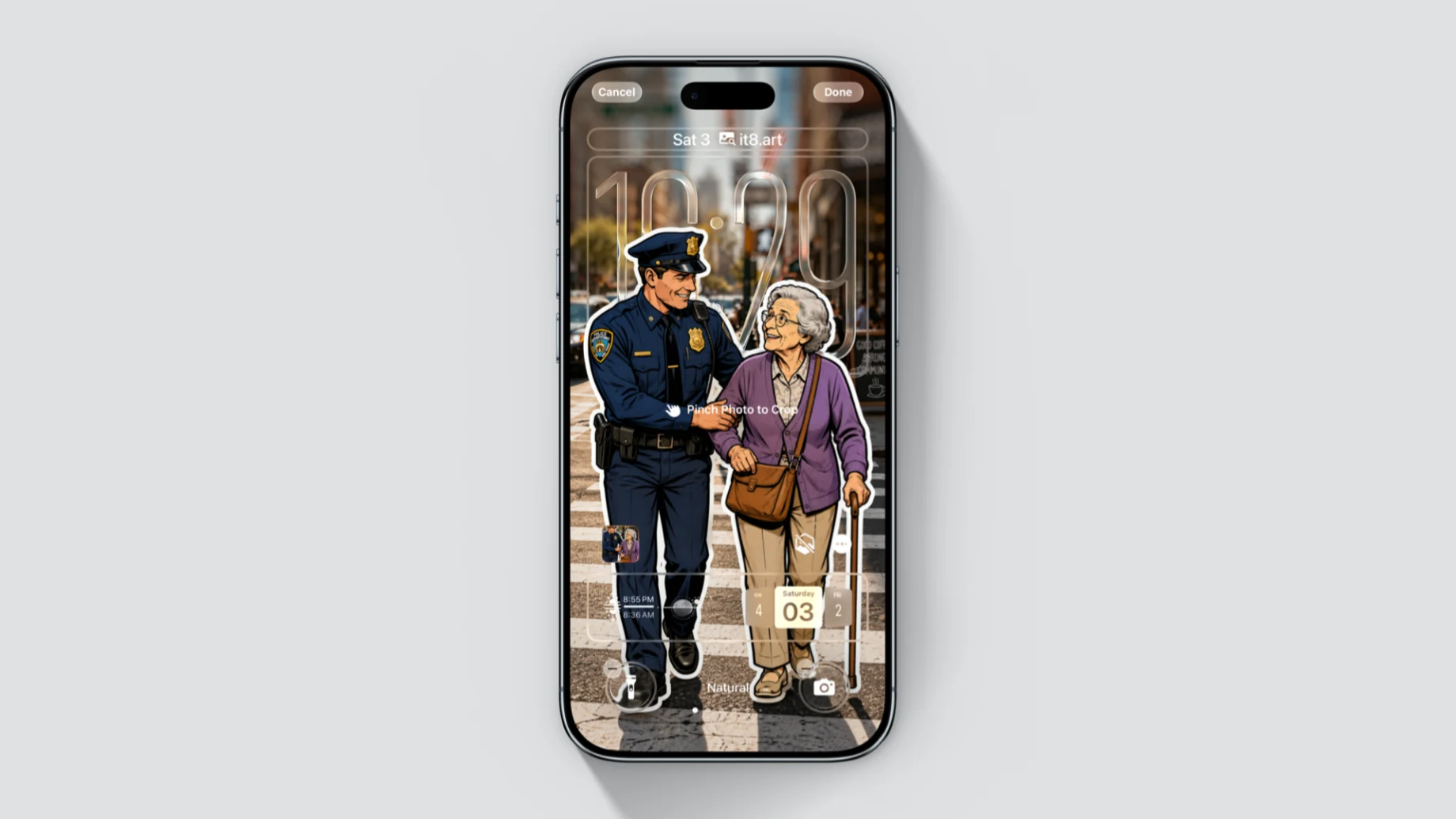
Select the saved original image in Settings, adjust the crop for the Lock Screen, and customize the Home Screen separately when it needs a quieter or differently positioned layout.
- Open Settings, choose Wallpaper, and select Add New Wallpaper.
- Choose Photos and select the wallpaper image you saved.
- Adjust the crop while keeping the main subject clear of the clock, widgets, and controls.
- Choose Add, then select Set as Wallpaper Pair or Customize Home Screen if you want a different Home Screen treatment.
- Check the completed Lock Screen and Home Screen on your iPhone and refine the crop if needed.
What should you do if the download or ZIP does not work?
If the normal flow does not work, identify whether the problem occurs during download, extraction, saving, or wallpaper setup before repeating the process.
| Problem | Likely cause | What to try |
|---|---|---|
| The ZIP is not in Downloads | Safari may use a different download location, or the download may not be complete. | Check the Downloads button in Safari, then review Browse locations in Files. |
| The ZIP does not open | The file may still be downloading or may not have completed correctly. | Wait for the download to finish, then tap the ZIP or touch and hold it and choose Uncompress. |
| The extracted images are not in Photos | Files and Photos are separate locations on iPhone. | Open or select the image in Files, use Share, and choose the available option to save it to Photos. |
| The wallpaper looks soft | A preview, screenshot, or enlarged image may have been used instead of the original file. | Return to the extracted folder and save the original wallpaper image to Photos. |
| The crop looks different from the preview | Screen size and iOS layout can change the visible framing. | Adjust the crop on the target iPhone and customize the Home Screen separately when needed. |
Download locations and menu labels can vary with Safari settings and iOS versions. Use the product page as the authority for the files included in a specific wallpaper pack.
Why should you keep the original download?
Keep the ZIP and extracted folder until the original images are saved in Photos and both screens are set correctly. This lets you return to the source files if you accidentally use a preview or want to test a different wallpaper from the pack.
 4K
4K  8K
8K  4K
4K 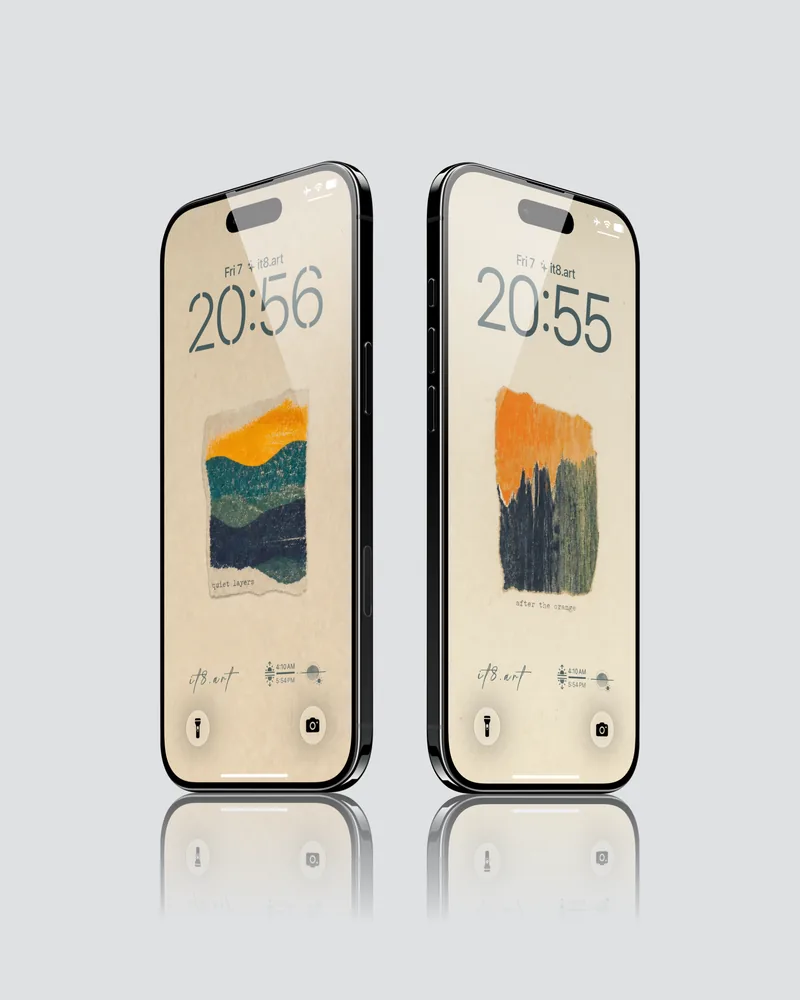 4K
4K