What files are included with an it8.art widget product?
An it8.art widget product normally provides the widget as a QR code or .widgy file and includes a product-specific setup guide inside the downloaded ZIP. The guide explains how to recreate the layout shown in that product’s demo images.
Included wallpaper files, widget count, widget sizes, and any other assets vary by product. Use the individual product page and included setup guide as the authority for the download you purchased.
What should you check before importing a widget?
Before importing, extract the ZIP, open the product-specific setup guide, confirm the supplied file type, and identify the Small, Medium, or Large size shown in the product demo.
- Download and extract the product ZIP on your iPhone.
- Open the included widget setup guide before importing any files.
- Install or open Widgy from the App Store. Widgy is supplied by its own developer and is not included in the it8.art download.
- Check the product demo images and setup guide to identify whether the layout uses a Small, Medium, or Large widget.
How we tested this setup
We ran through this setup on our own iPhone in October 2026 with Widgy version 27.0.1, importing one of our widgets from start to finish. The photos in the steps below were taken during that run.
Widgy can rename its buttons and tabs in later versions. If a label differs from the photos, look for the closest match in the current app.
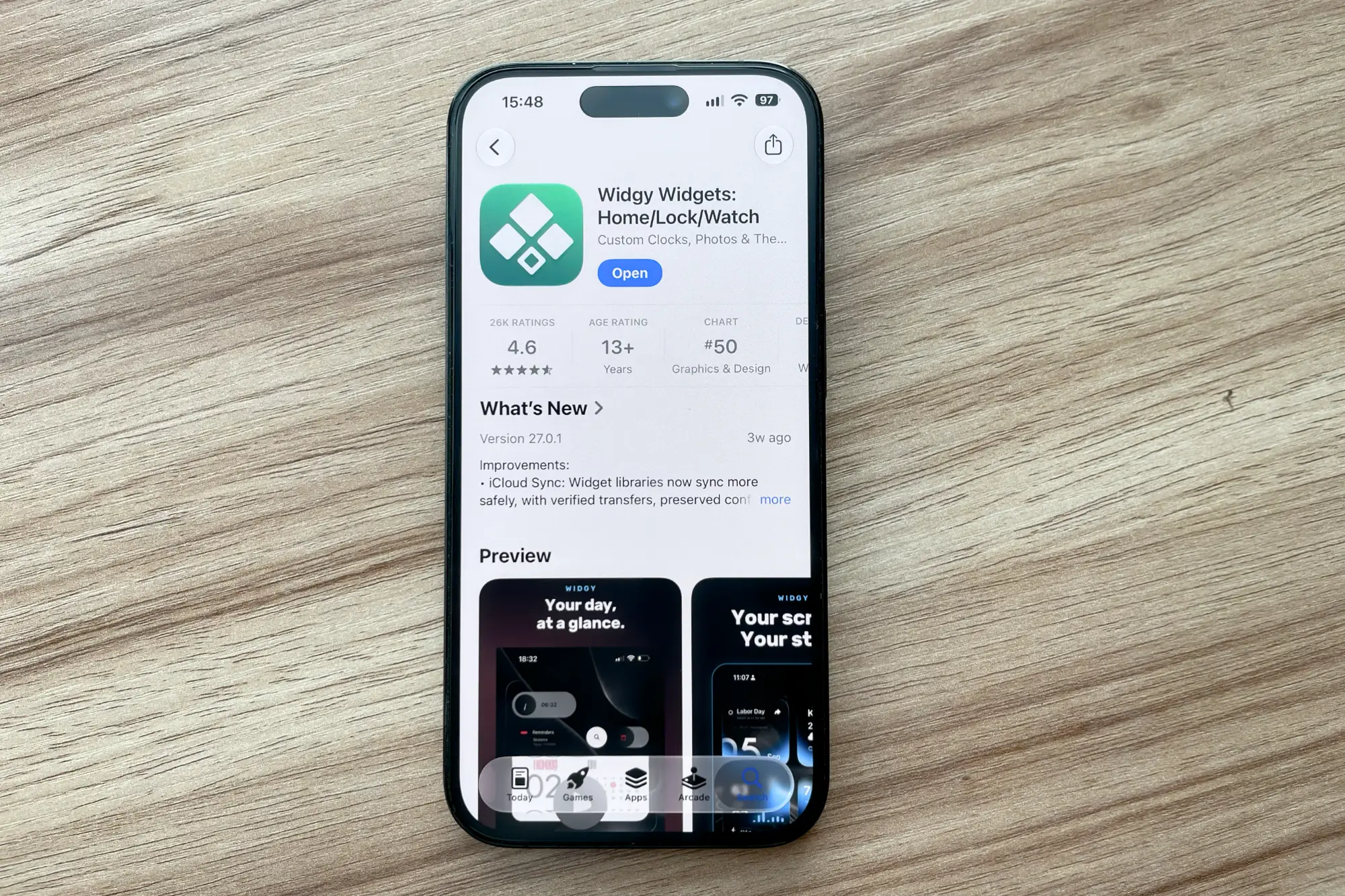
Step 1: Install Widgy from the App Store
Search for Widgy in the App Store on your iPhone and install it. Widgy is made by its own developer and is not part of the it8.art download.
Step 2: Allow the permissions Widgy asks for
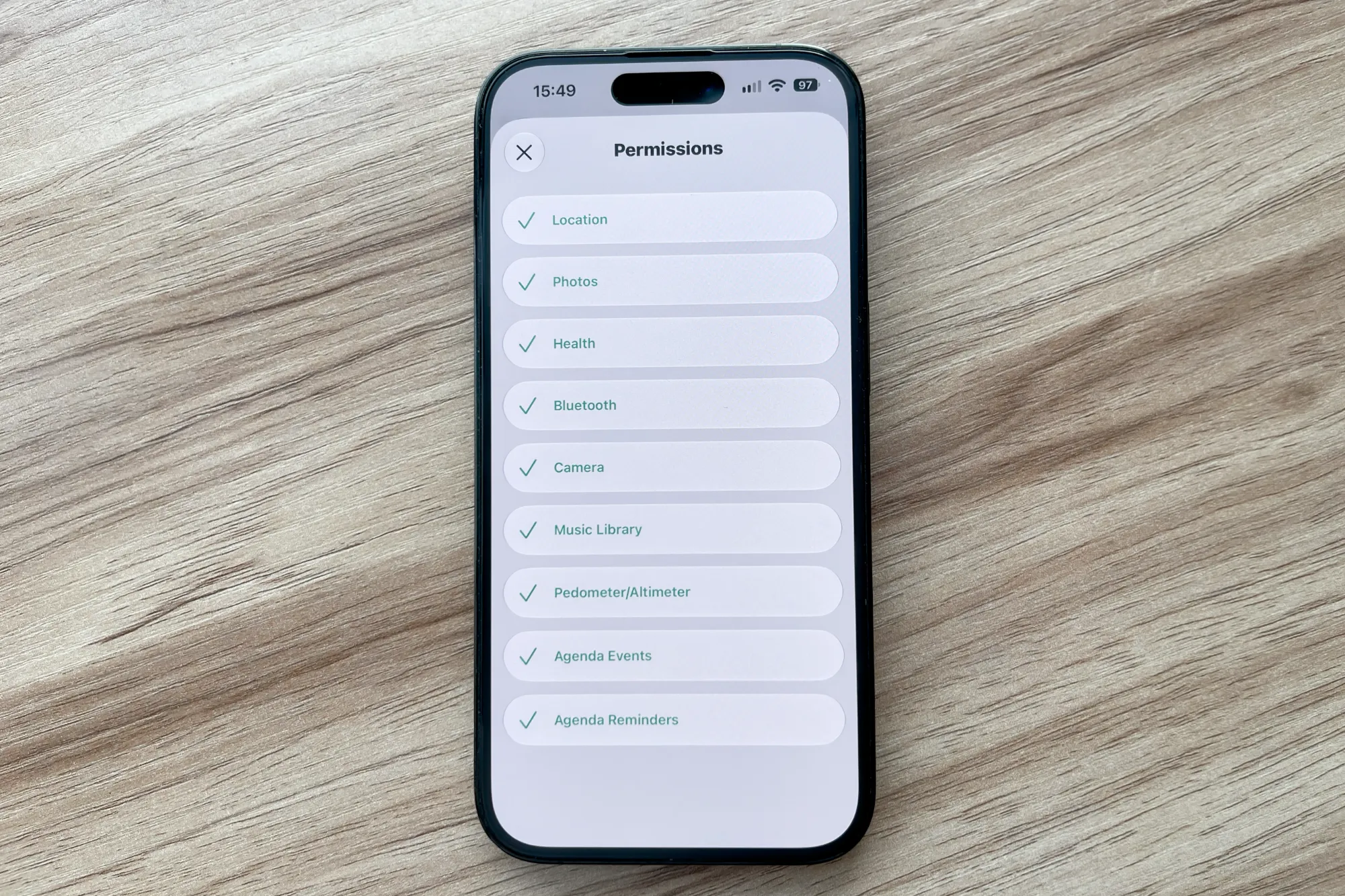
The first time we opened Widgy, it asked for access to Location, Photos, Health, Bluetooth, Camera, Music Library, Pedometer/Altimeter, Agenda Events and Agenda Reminders. If you decline one, the parts of a widget that rely on it may not display.
Step 3: Open Create and tap Import
In Widgy’s Create tab, tap Import.
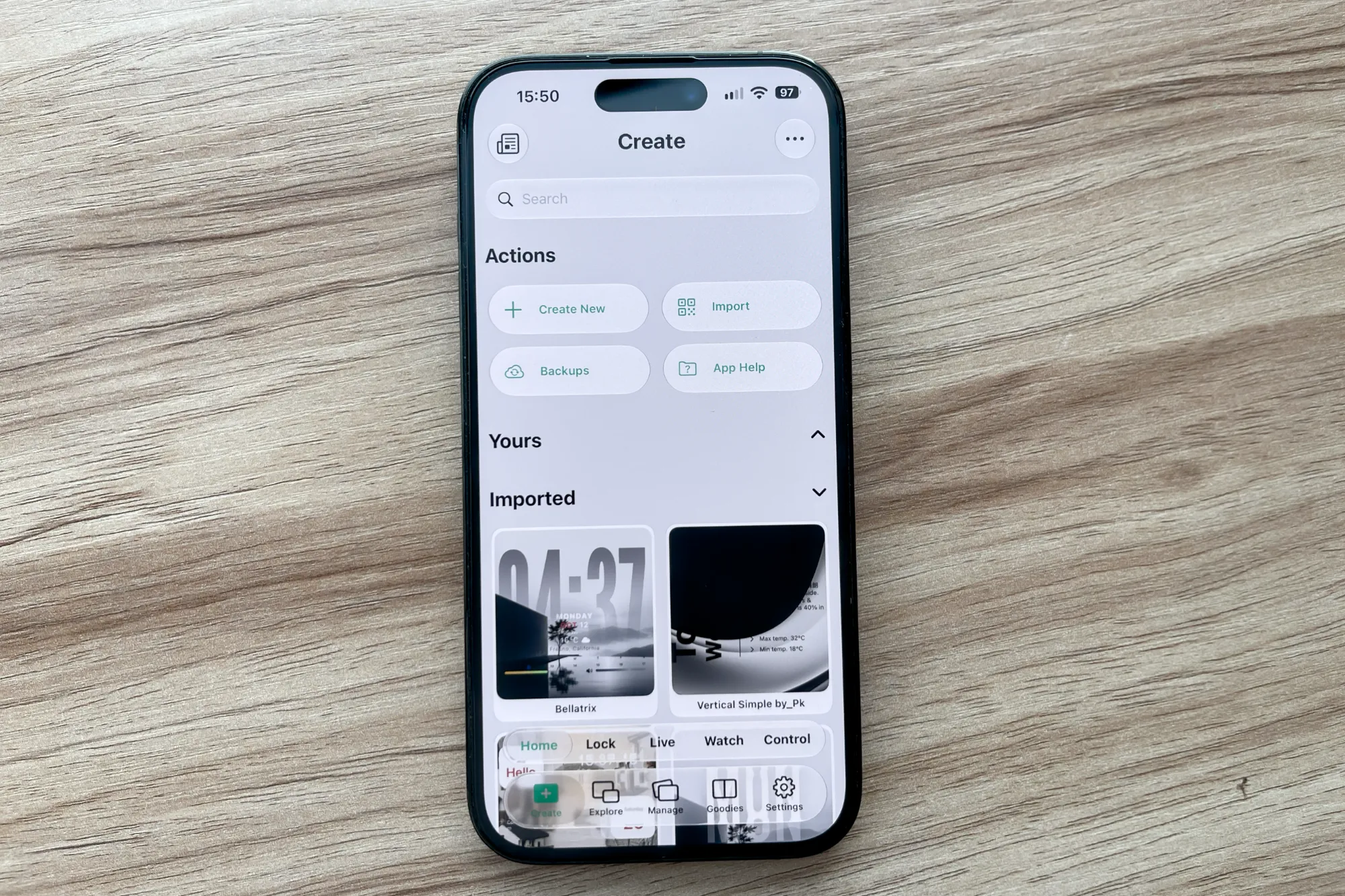
Step 4: Choose the import option that matches your file
Our widgets come as a QR code image or a .widgy file. For a QR image, save it to Photos first, then choose Import QR Code From Photos.
We don’t use Import QR Code From Pasteboard: in our tests it sometimes failed to recognise the widget, and the import did not go through. If your download includes a .widgy file, choose Import .widgy File From Files.
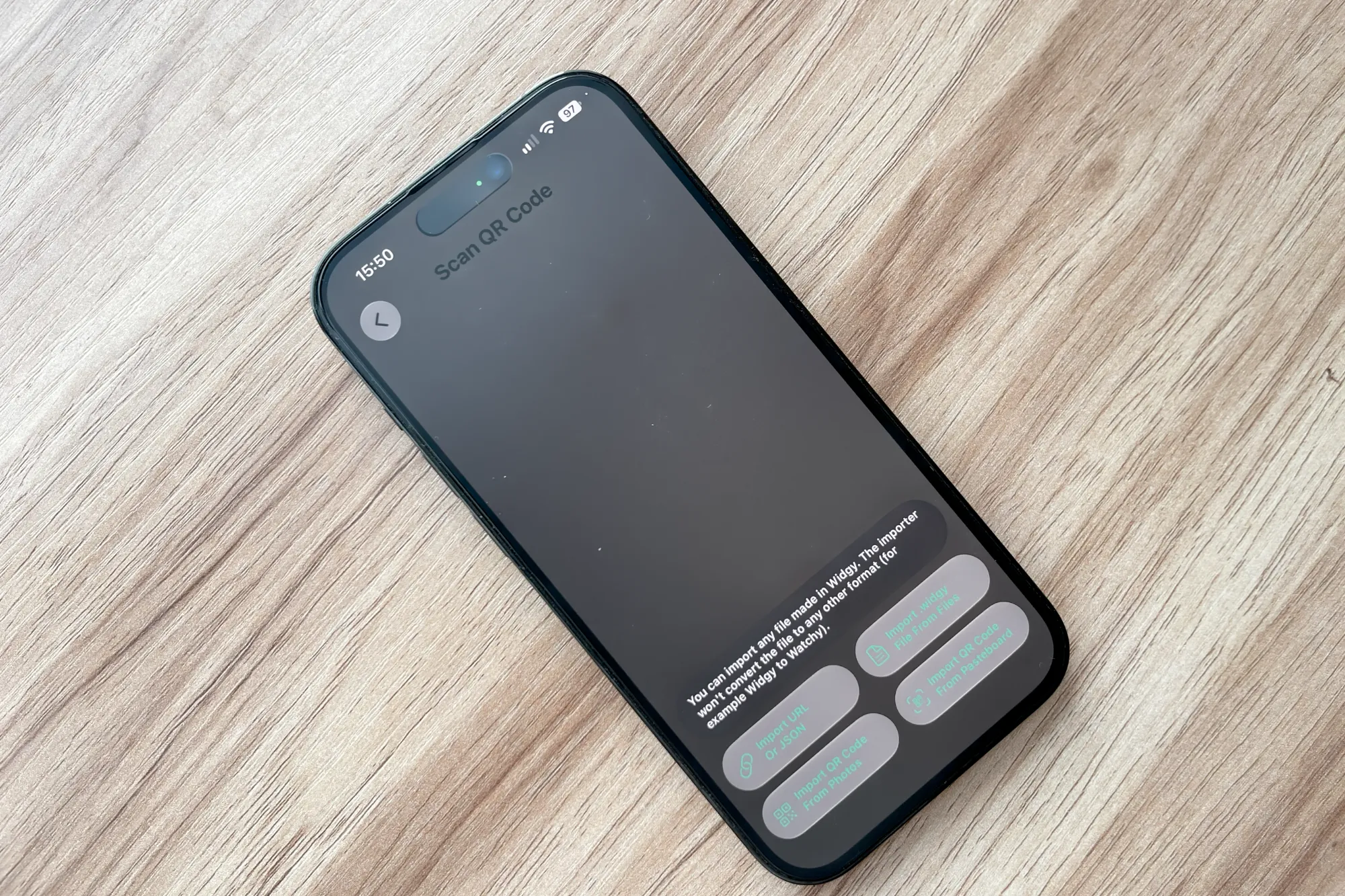
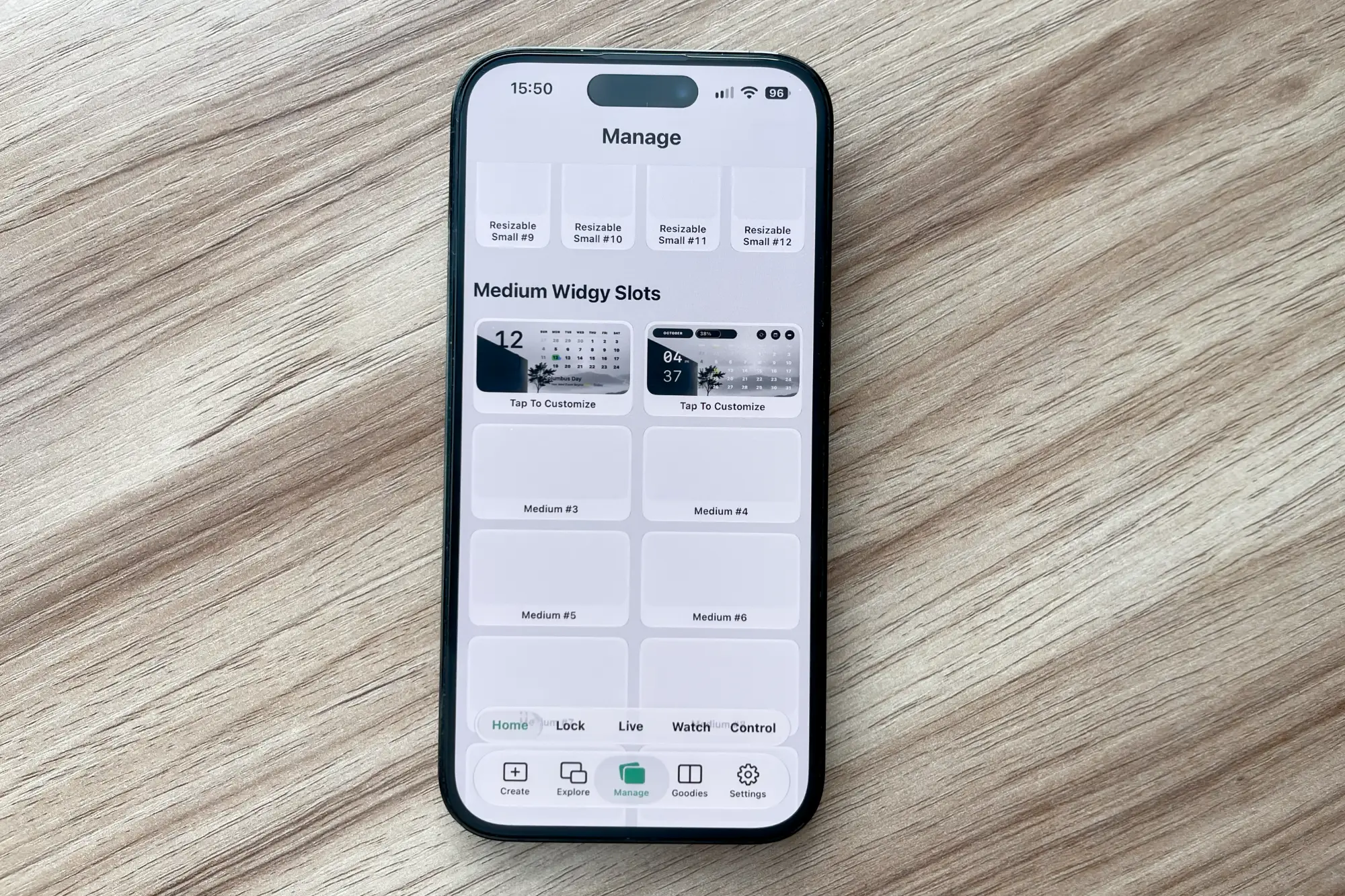
Step 5: Assign the widget to a matching slot in Manage
Open Manage and choose a slot in the same size as the widget you imported. On the free version of Widgy, only one slot can be used by default.
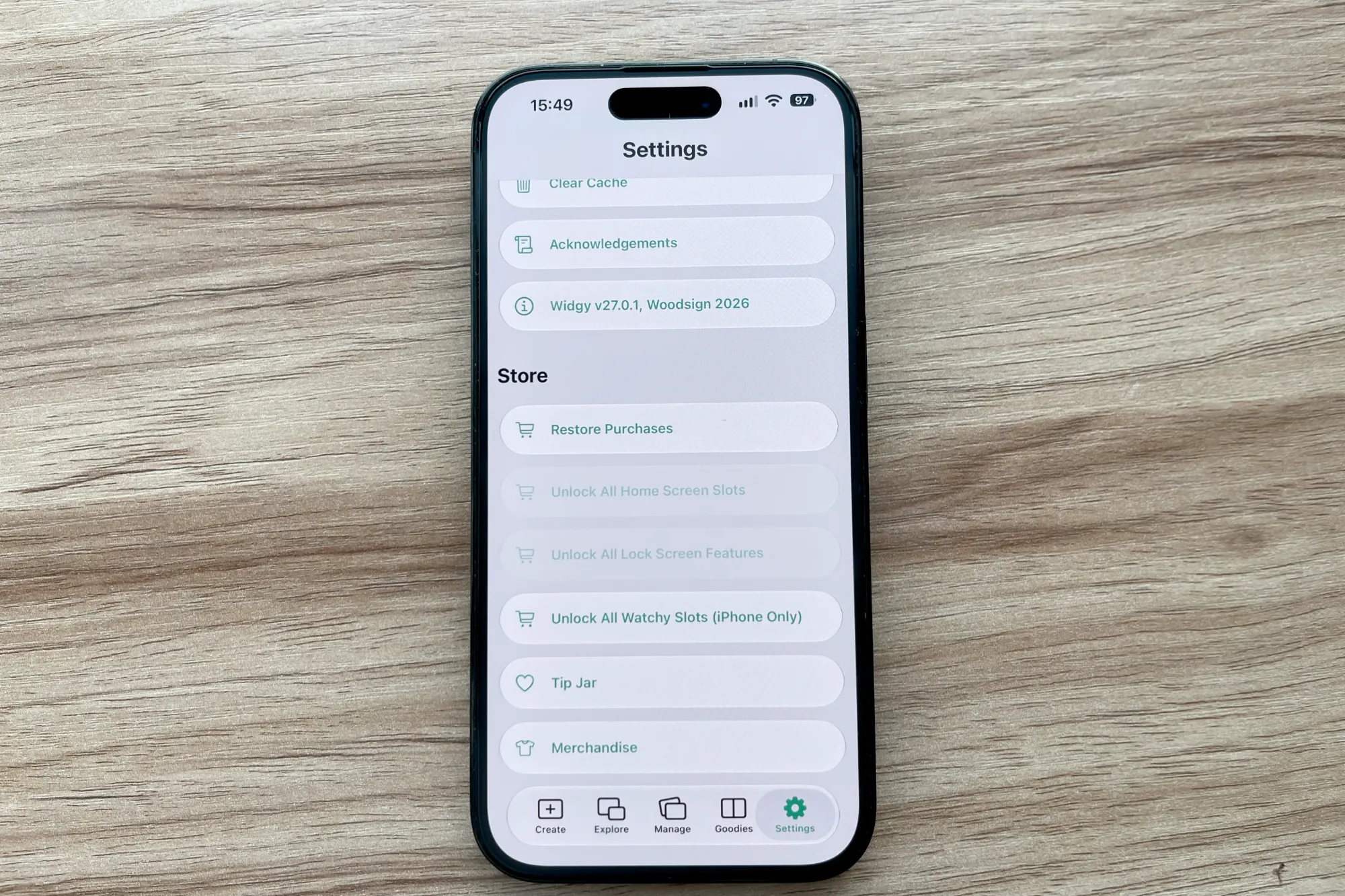
Step 6: Unlock more slots if your layout needs them
To use more than one Home Screen widget, or any Lock Screen widgets, Widgy requires the in-app purchases Unlock All Home Screen Slots and Unlock All Lock Screen Features, found under Settings › Store. These are sold and managed by Widgy, not by it8.art.
Step 7: Open the Home Screen edit menu
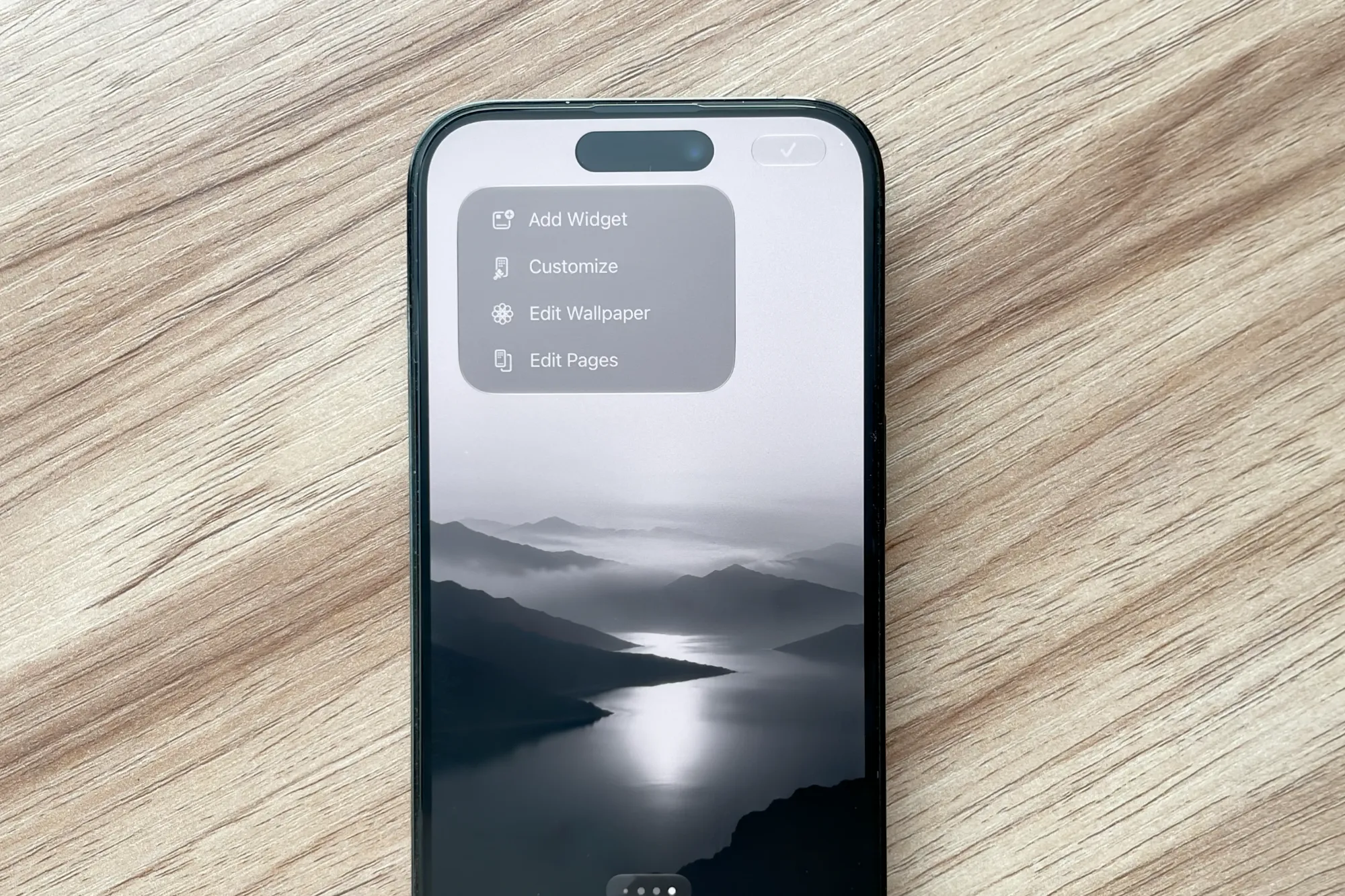
Back on the Home Screen, touch and hold an empty area until the icons jiggle. Tap the brush button in the top-left corner and choose Add Widget.
Step 8: Add the Widgy widget for that slot
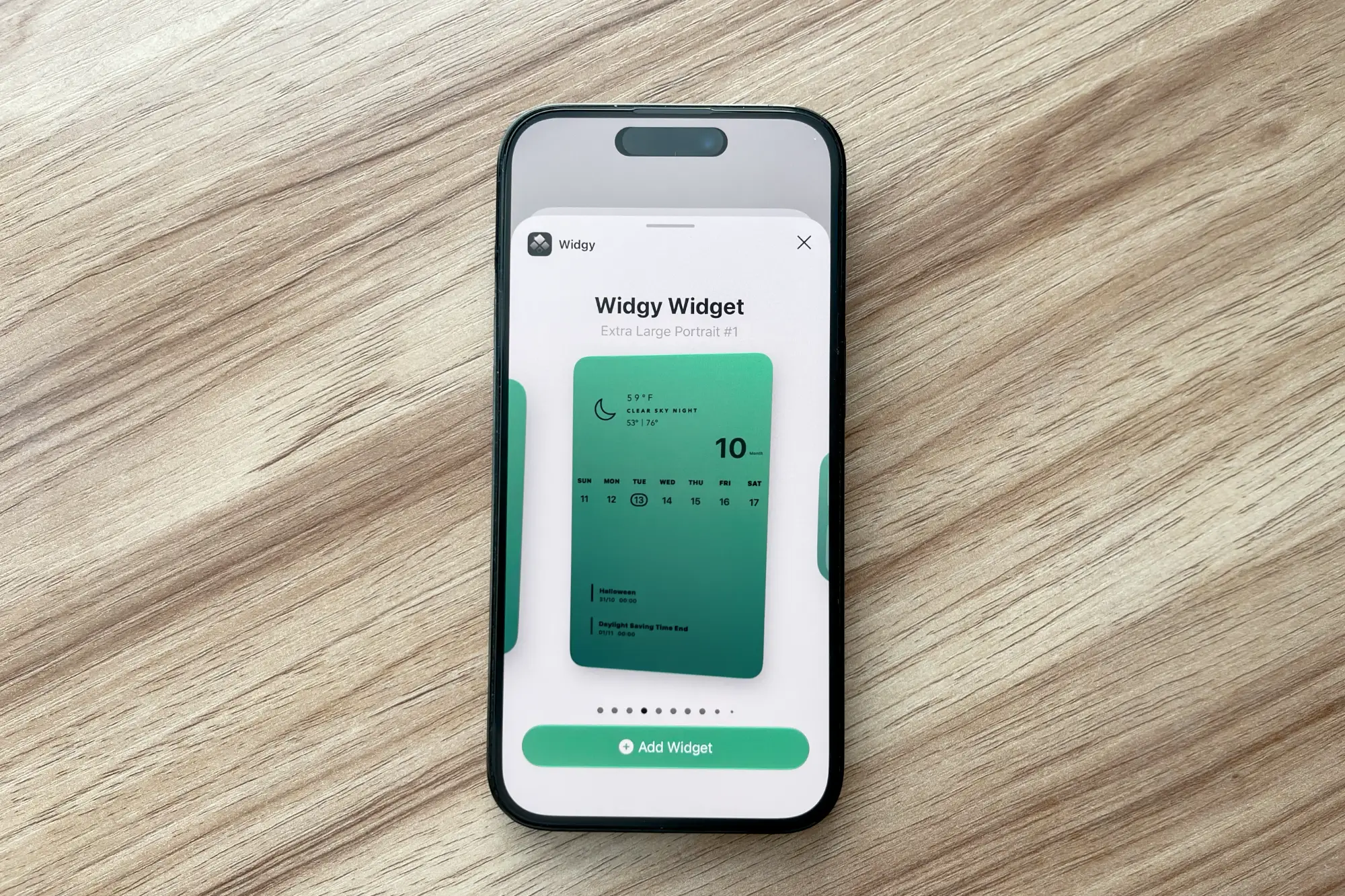
Choose Widgy, swipe to the widget you assigned in Manage, and tap Add Widget.
Step 9: Check the finished Home Screen
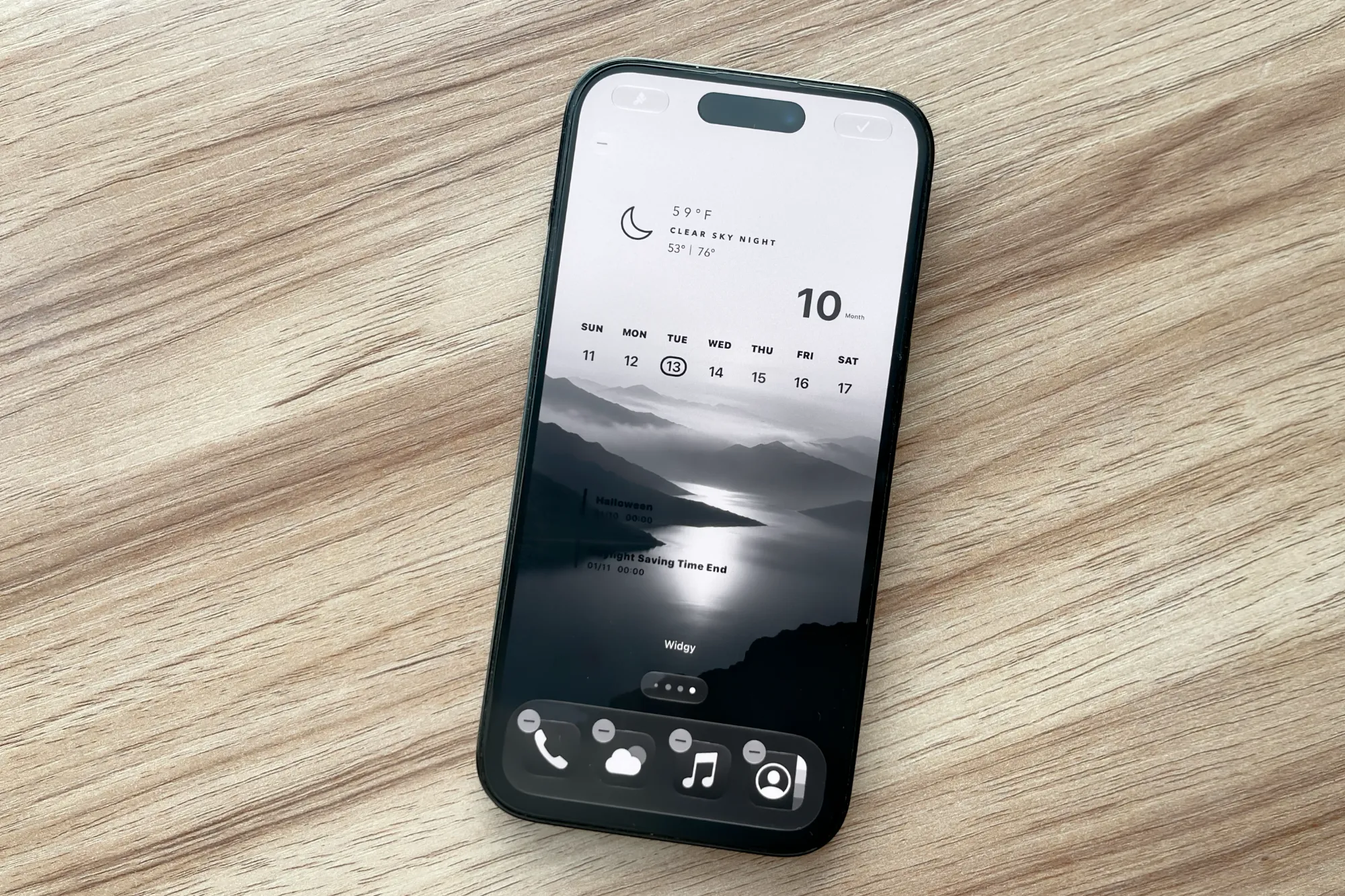
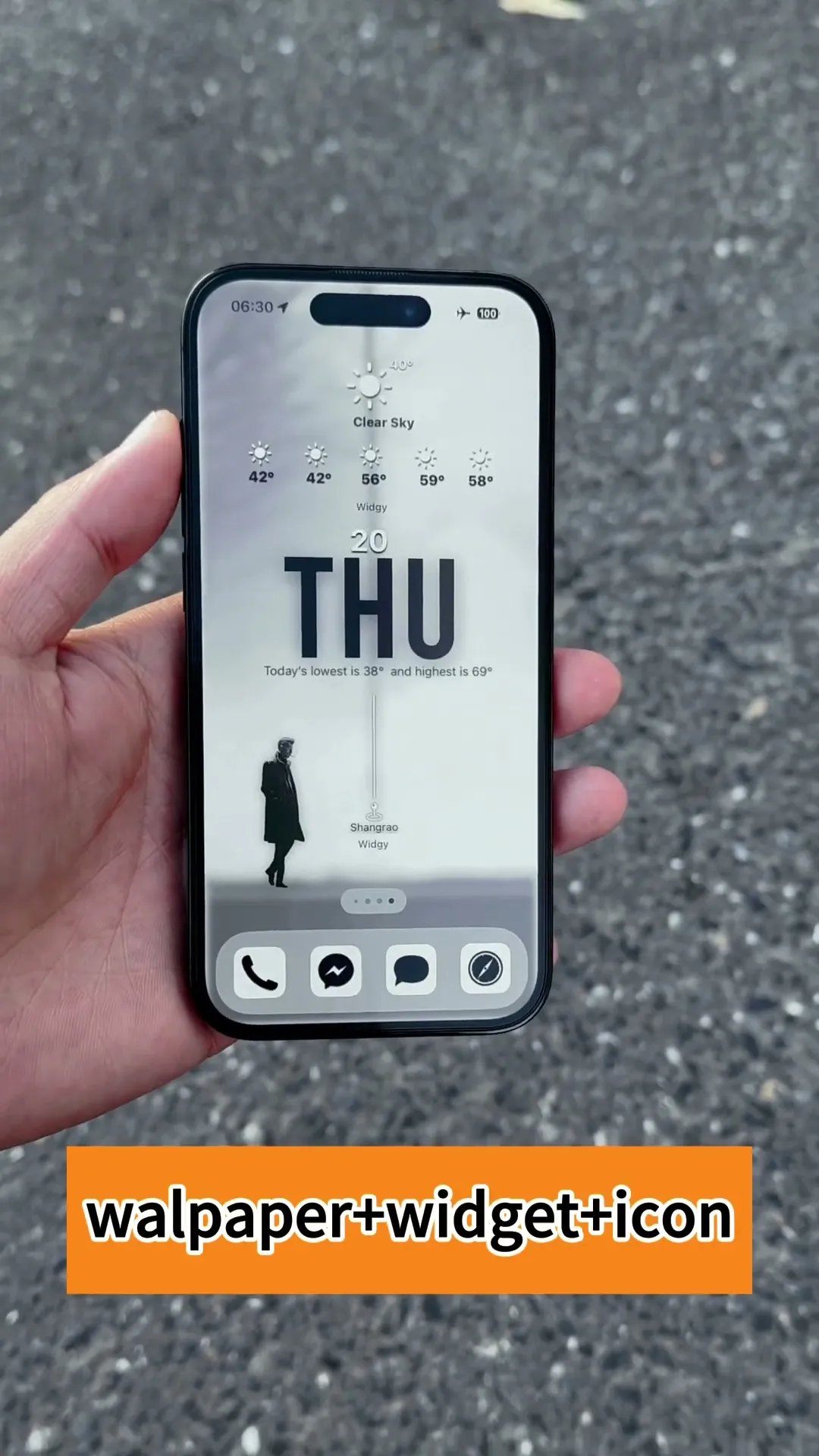
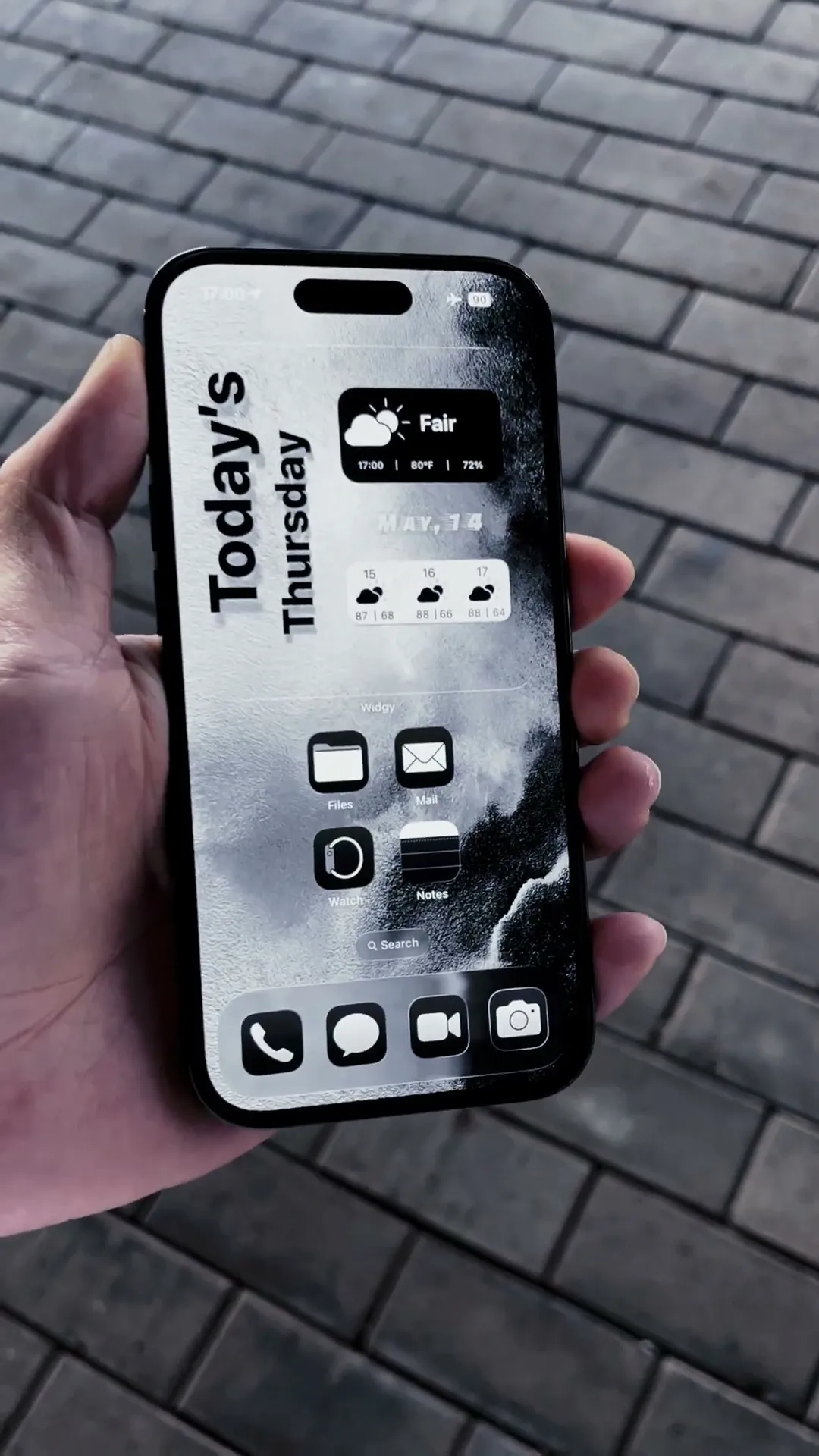
The widget now sits on the Home Screen. In our setup it shows the weather, the week’s dates and upcoming events over a black-and-white lake wallpaper. That completes the setup.
Is Widgy included with an it8.art purchase?
No. Your it8.art purchase covers the listed digital design files and product-specific setup guide, while Widgy is a separate third-party app developed and managed by its own developer. it8.art is not affiliated with, sponsored by, or endorsed by Widgy.
Widgy is listed on the App Store as a free app with in-app purchases. In our setup, the free version allowed one active slot; more Home Screen widgets need Unlock All Home Screen Slots, and Lock Screen widgets need Unlock All Lock Screen Features. Availability, terms, and pricing are controlled by Widgy and can vary by account, region, and app version.
Check the product demo first to see how many widgets the shown layout uses. The included setup guide explains the intended arrangement, while current slot controls and any optional unlock are handled inside Widgy.
How do you troubleshoot a Widgy widget setup?
Work through the setup in order: import the supplied widget, assign it to the correct slot, then add the matching Widgy size to the iPhone Home Screen.
| Problem | Likely cause | What to try |
|---|---|---|
| The QR code does not import | The QR image may be unclear or cropped, or it was imported from the clipboard (Pasteboard), which sometimes fails to recognise the widget. | Save the original QR image from the ZIP to Photos, then use Import QR Code From Photos. |
| The .widgy file does not open | The file may still be inside the ZIP or may not have been opened with Widgy. | Extract the ZIP first, then open the original .widgy file using the method in the setup guide. |
| The widget is imported but not on the Home Screen | Importing and assigning are separate steps. | Assign the imported widget to a matching Widgy slot, then add Widgy from the iPhone widget gallery. |
| The widget size or layout looks wrong | The selected Home Screen size may not match the product demo. | Check the demo images and setup guide, then use the matching Small, Medium, or Large slot and Home Screen widget size. |
| A second widget cannot be assigned | The free version of Widgy allows one active slot by default. | Check Settings › Store in Widgy. More Home Screen widgets need Unlock All Home Screen Slots, which Widgy sells separately. |
| Widget information is missing or different | Widgy may not have permission to read the data the widget shows, or the widget may need other configuration in Widgy. | Check the permissions Widgy requested, then follow the product-specific setup guide for the intended layout. |
Widgy can change its interface, slot system, and available settings. The included it8.art setup guide remains the authority for the product-specific design, while Widgy’s current app screens govern importing, slot access, and live widget settings.
Why should you keep the included widget setup guide?
Keep the included setup guide because it connects the supplied widget file to the exact size, wallpaper, and arrangement shown in that product’s demo. It is part of the purchased product, not a generic extra.
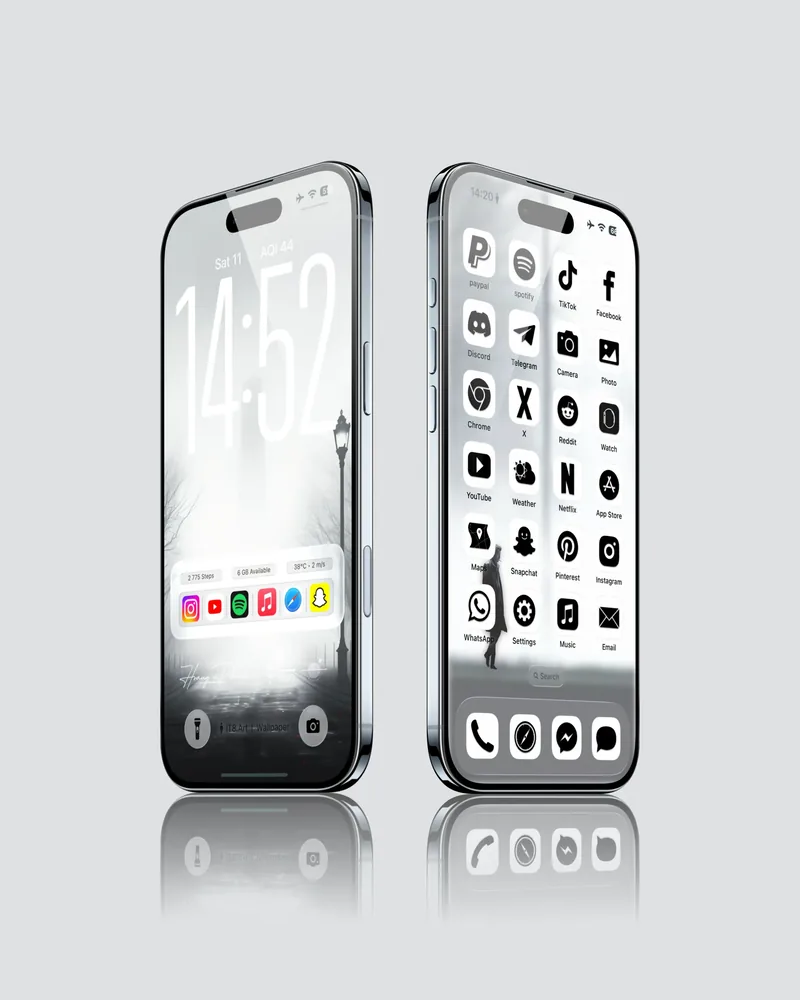
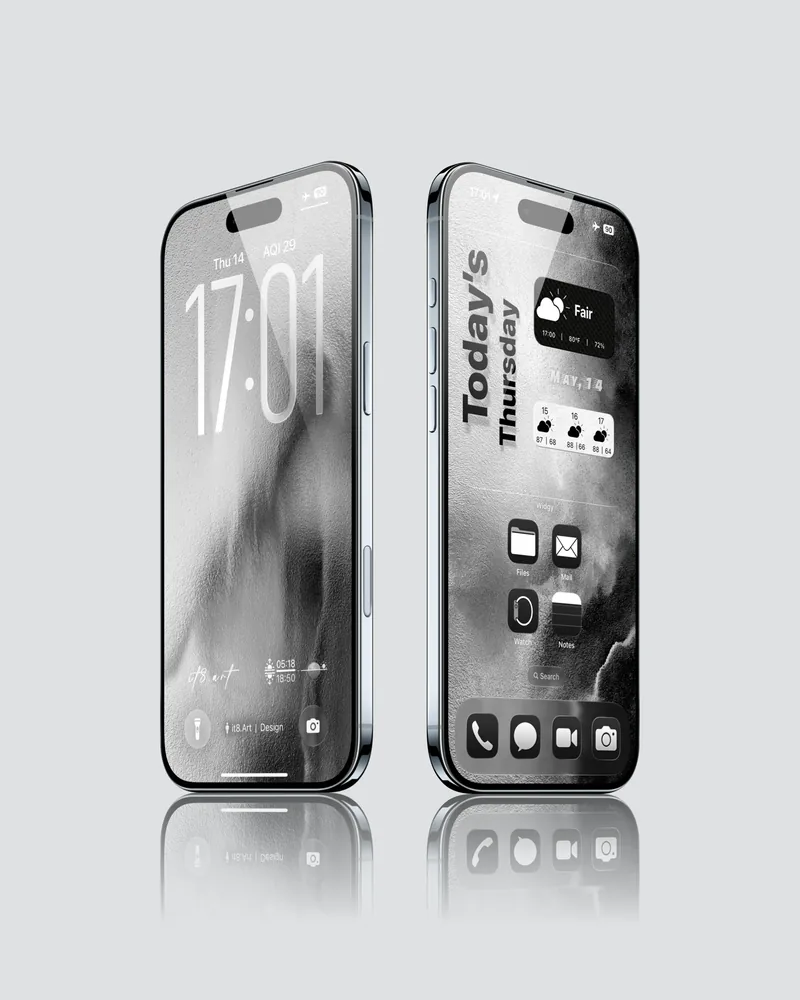 4K
4K 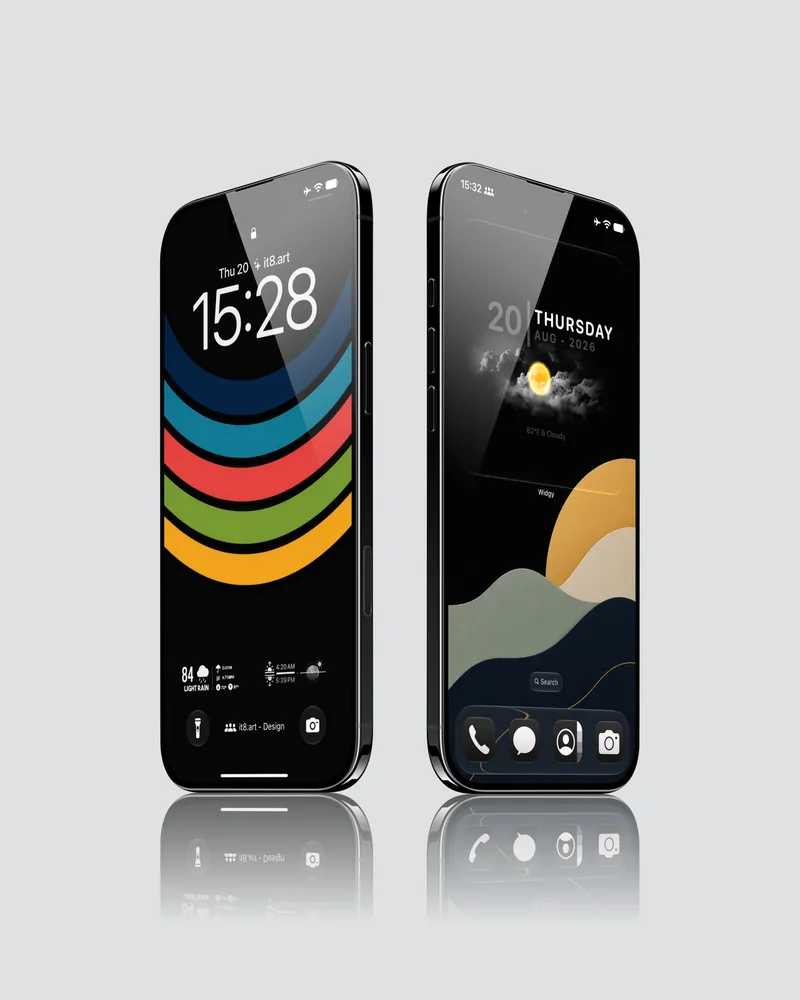 4K
4K