
What files are included with an it8.art icon product?
An it8.art icon product includes PNG icon files inside the downloaded ZIP and a product-specific icon setup guide. The guide helps you match the supplied images to the intended layout shown in the product demo.
Icon count, color variants, matching wallpapers, and other included files vary by product. Check the individual product page and included setup guide for the exact contents of your download.
What should you do before creating custom icons?
Before creating shortcuts, extract the ZIP, open the included icon guide, save the original PNG icons to Photos, and confirm that each destination app is installed.
- Download and extract the product ZIP on your iPhone.
- Open the included icon setup guide and keep it available during the setup.
- Save the PNG icon images you want to use to the Photos app.
- Confirm that the original apps are installed on the iPhone.
- Plan to create each shortcut manually; the download does not include a bulk installer or configuration profile.
How do you create a custom app icon with Shortcuts?
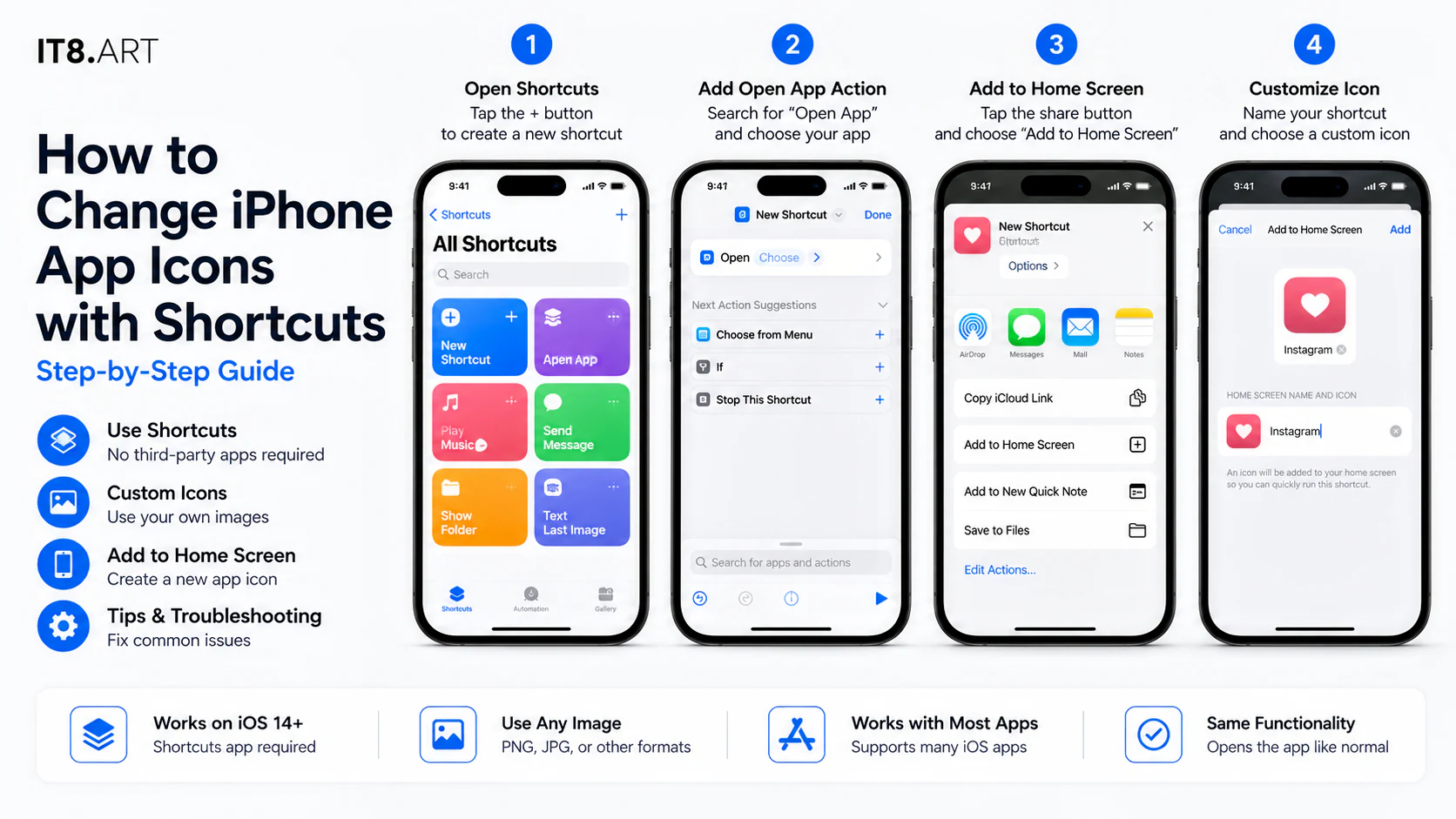
Create one Open App shortcut for each destination app, then use Add to Home Screen and select the matching PNG icon saved in Photos.
- Open the Shortcuts app and create a new shortcut.
- Add the Open App action.
- Choose the original app that this shortcut should open.
- Open the shortcut details and choose Add to Home Screen.
- Tap the Home Screen icon, choose a photo, and select the matching PNG icon saved in Photos.
- Enter the app name you want to display, then tap Add.
- Test the new Home Screen icon and confirm that it opens the correct original app.
- Repeat the process manually for each additional app icon you want to use.
Do custom icons replace the original iPhone apps?
No. A custom Home Screen icon is a shortcut that runs Open App and then opens the original app. It changes the appearance of the Home Screen entry you create but does not replace or modify the installed app or its built-in icon.
| Behavior | Custom shortcut icon | Original app |
|---|---|---|
| Opening the app | Runs the Open App shortcut and then opens the selected original app. | Opens the installed app directly. |
| Notification badges | Does not receive the original app’s notification badge. | Keeps the app’s notification badge when badges are enabled. |
| Removing the Home Screen item | Removing the shortcut does not uninstall the original app. | The installed app remains the source used by the shortcut. |
| Installation | Created manually for each app through Shortcuts and Add to Home Screen. | Must remain installed for the custom shortcut to open it. |
Keep the original app installed. it8.art does not recommend moving its icon to the App Library when you need to see the notification badge on the Home Screen, because that badge does not move to the shortcut icon.
Why must each custom icon be installed manually?
Each icon must be installed manually because Shortcuts requires you to select the destination app, icon image, and displayed name for every Home Screen shortcut. The product does not install a configuration profile, alter iOS system files, or replace multiple app icons automatically.
The manual process gives you control over which supplied icons appear on your Home Screen. Use the included product guide to keep the selected icon style and layout consistent.
How do you troubleshoot custom app icons?
Test each shortcut immediately after adding it. This makes it easier to correct the selected app, icon image, or displayed name before creating the next one.
| Problem | Likely cause | What to try |
|---|---|---|
| The icon opens the wrong app | The Open App action was assigned to a different app. | Edit or recreate the shortcut and select the correct original app in Open App. |
| The icon image looks soft or incorrect | A preview, screenshot, or wrong icon variant may have been selected. | Use the original PNG from the extracted ZIP, save it to Photos, and select it again. |
| The custom icon has no notification badge | Notification badges belong to the original app icon, not the Home Screen shortcut. | Check the original app for its badge and notifications; the shortcut icon cannot fully replace that system behavior. |
| Both the original and custom icons are visible | The shortcut adds a new Home Screen entry and does not replace the original app icon. | Treat the custom item as a separate visual shortcut. Keep the original icon visible if you rely on its Home Screen notification badge. |
| Removing the custom icon did not delete the app | Only the Home Screen shortcut was removed. | This is expected. The original app remains installed and can still be opened normally. |
| The icons do not match the product demo | A different color variant, name, or layout may have been used. | Return to the included product-specific setup guide and match the selected PNG files and arrangement to the demo. |
Shortcuts and Home Screen controls can change between iOS versions. Use the included it8.art guide for the product-specific images and layout, and Apple’s current Shortcuts screens for the live system controls.
Why should you keep the included icon setup guide?
Keep the included setup guide with the PNG files until the icon selection, shortcut destinations, displayed names, and Home Screen arrangement have all been checked. The guide is part of the purchased product and explains that product’s intended layout.
 4K
4K